
Step 1: What the client sees by default
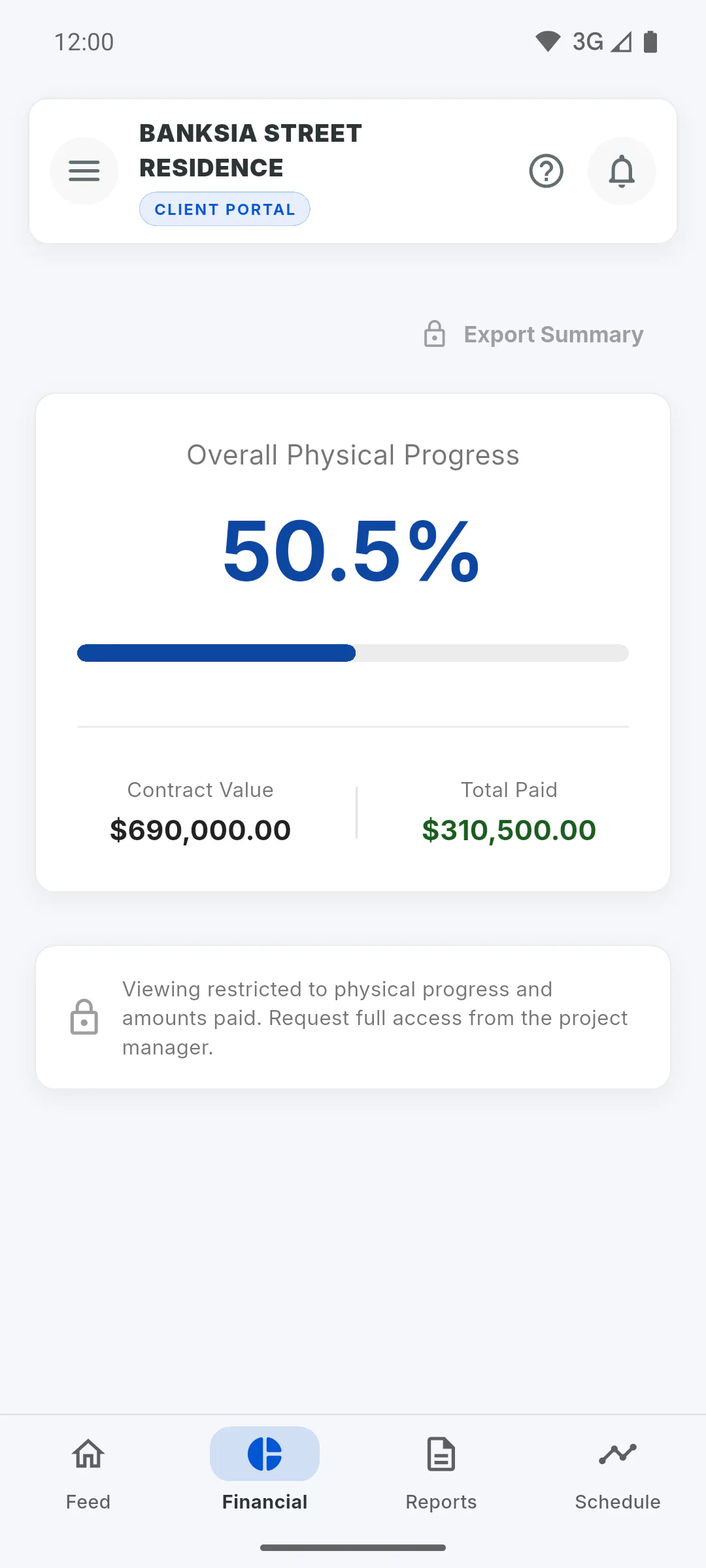
An invited client has the Financial tab in the Portal with a summary: Overall Physical Progress, Contract Value and Total Paid, which adds up the income logged on the project, plus a note that the view is restricted. They don't see the list of entries or the expenses. The export button shows a padlock.
Step 2: With Full Financial
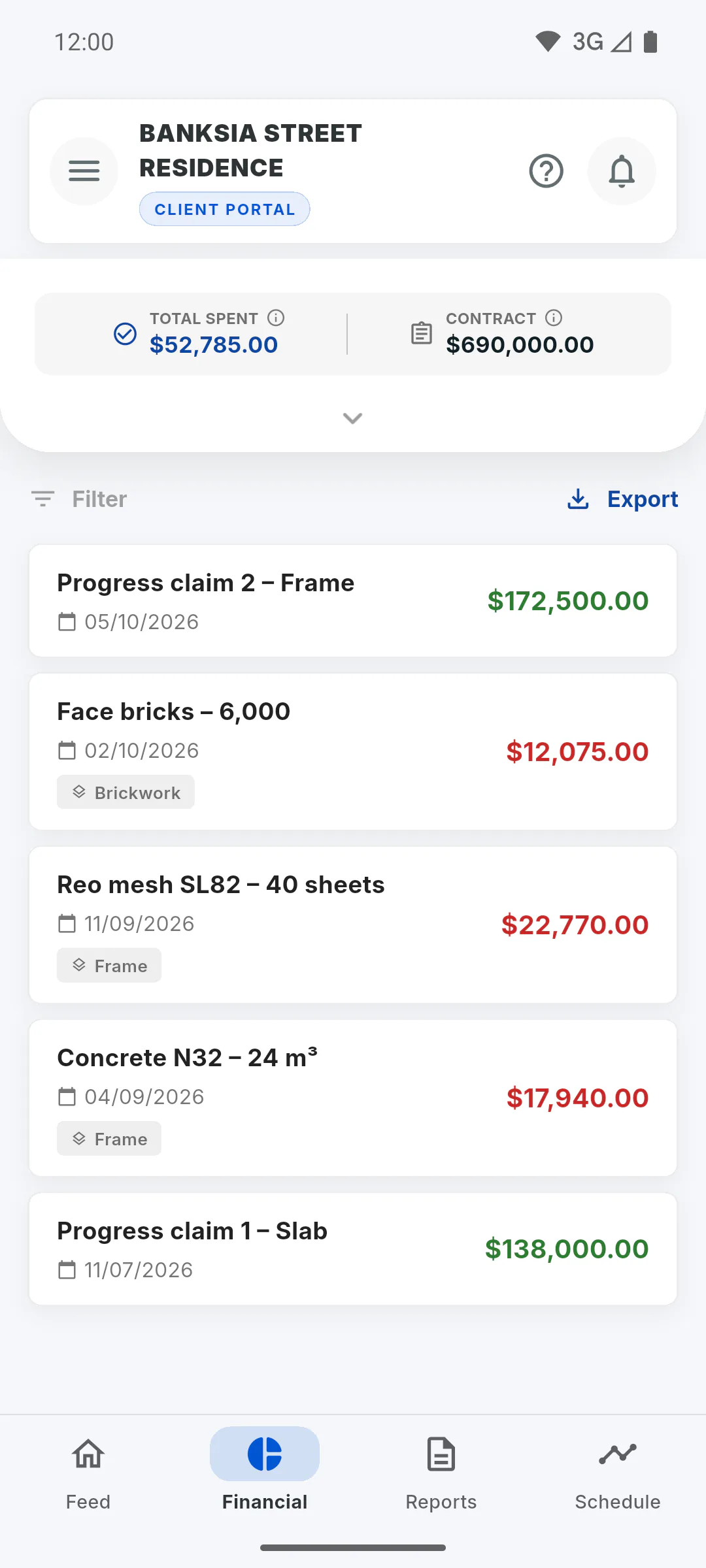
With Full Financial on, the client sees the list of income and expenses, with search and filters by date and stage, and the Costs indicators. With the panel collapsed, Total spent appears, adding up the expenses recorded on the project; in the summary, Total Paid adds up the income. With Efficiency Chart on, they also see the comparison between physical and financial progress.
Step 3: How to unlock it
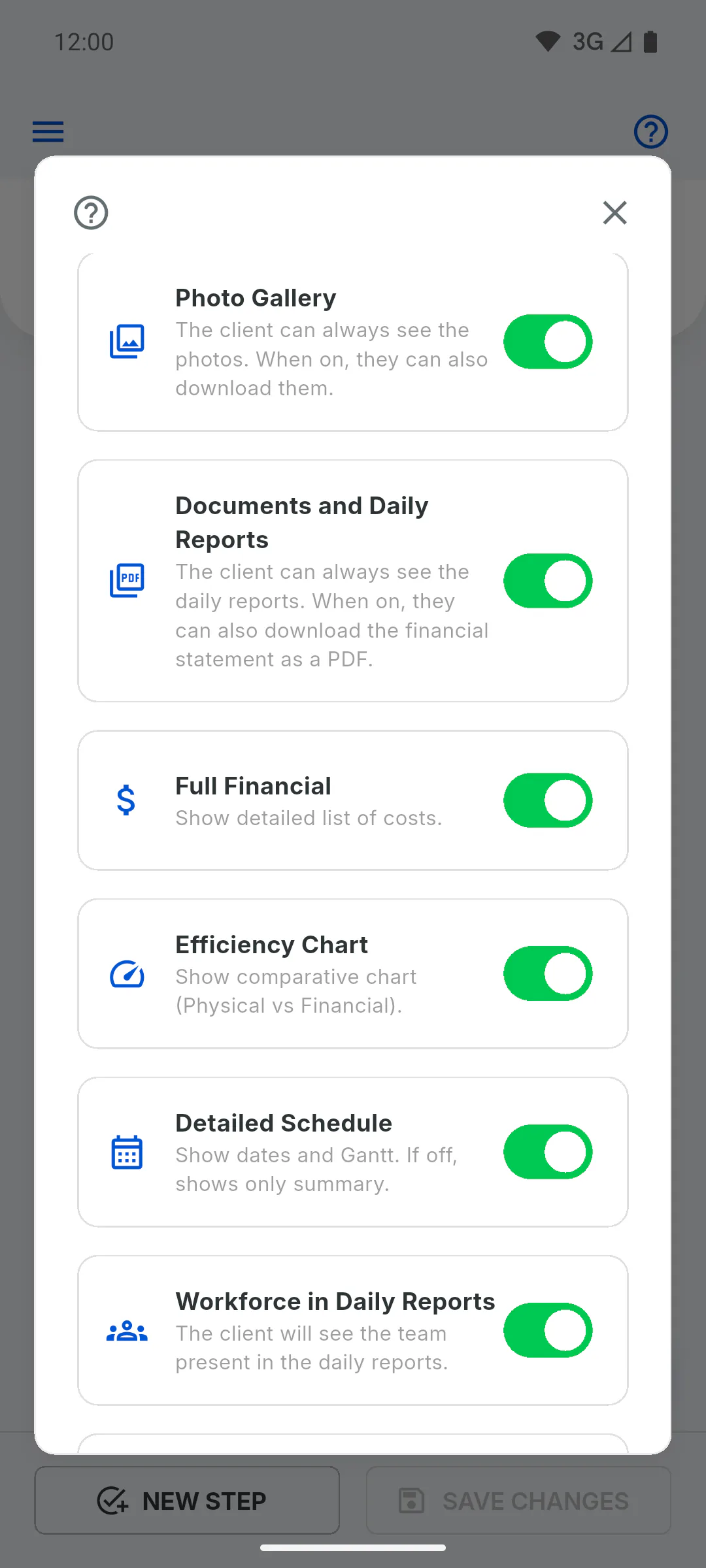
The switches are in the client settings, which only open once you've unlocked Client Access for the project: a one-time fee per project, for the owner only and only on PRO. At the bottom of the Project Menu, tap Configure on the Access Granted card, turn on Full Financial and tap Save Changes.
Step 4: The client's statement
The client can only export the PDF statement with Client Access unlocked and the Documents and Daily Reports switch on. From the summary, they get the summary statement; with full financials, the statement has the entries they filtered.
Step 5: Notices and what can't be hidden
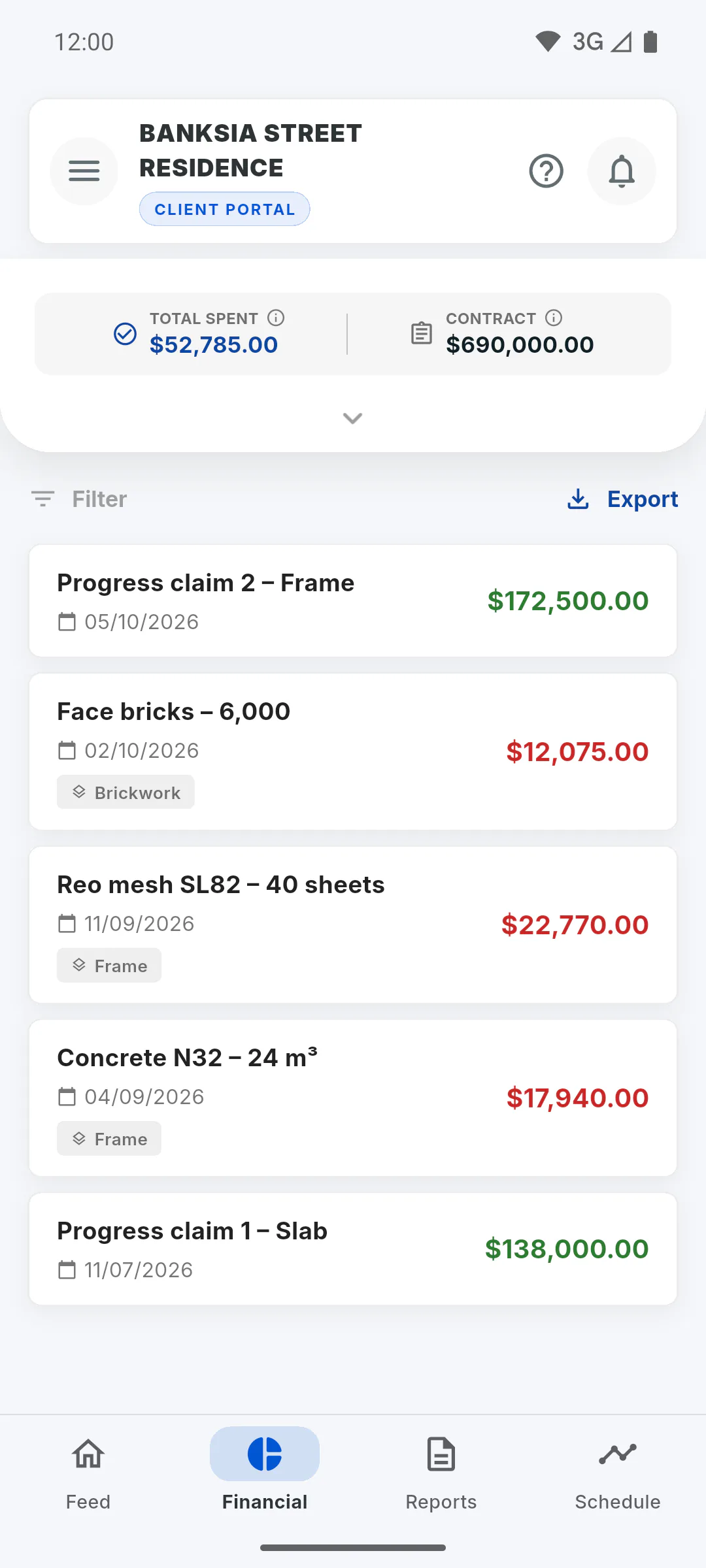
Each new entry sends the project's clients the notice Financial Update, with the description and amount, even when the client only sees the summary. There's no option to hide the Financial summary: turning off Full Financial takes the client back to the summary.
What your client sees of the financials and how to unlock more
Find out what an invited client sees of the project's Financial area in the Portal, how to unlock the full list and the statement, and what can't be hidden.
For managers5 steps
Didn't find what you were looking for?
Chat with support on WhatsApp or raise a ticket in the app.