
Step 1: Open the filters
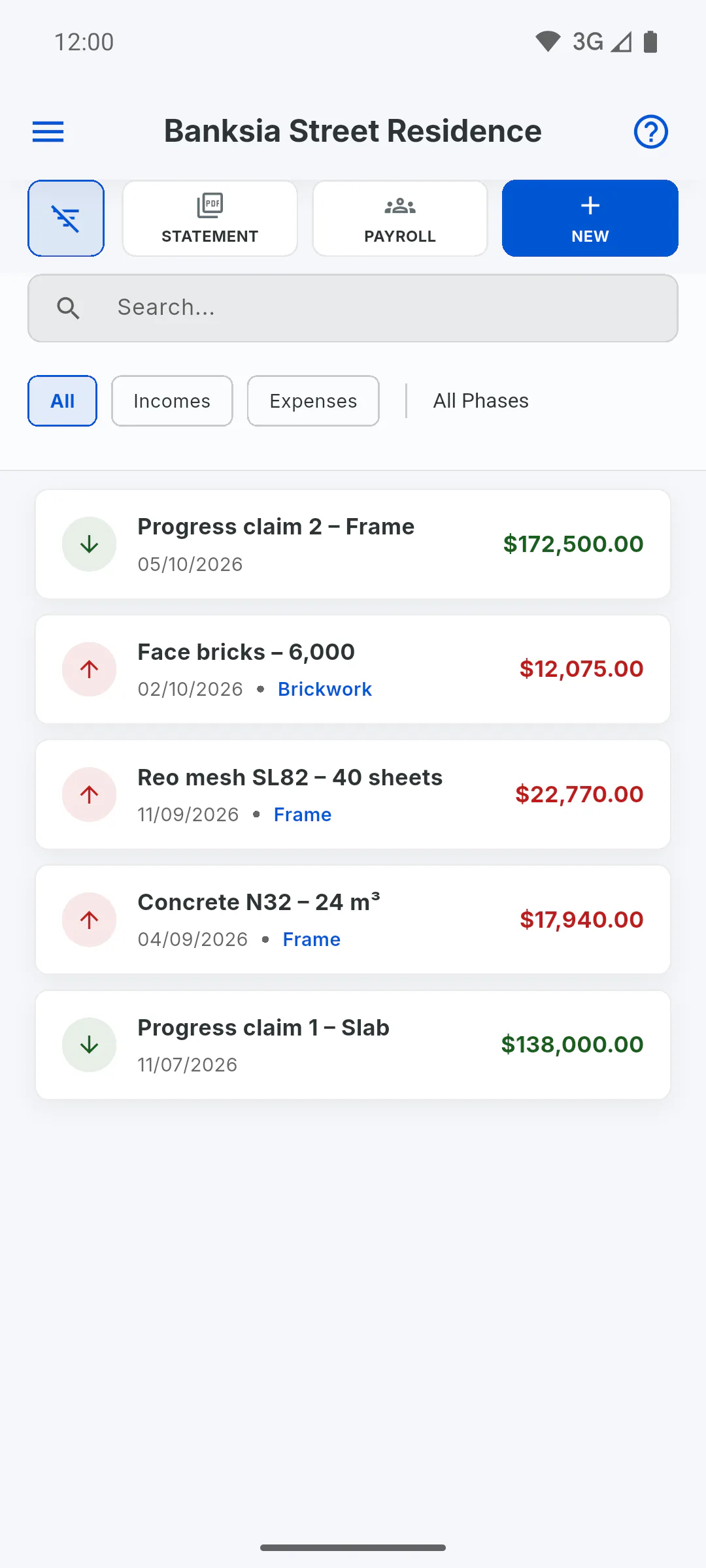
In the project's Financial area, tap the filter button to the left of Statement. You'll see:
- Search...: looks in the description and the stage name
- All, Incomes or Expenses
- the stage list, which starts at All Phases
There's no date filter.
Step 2: Use the filters
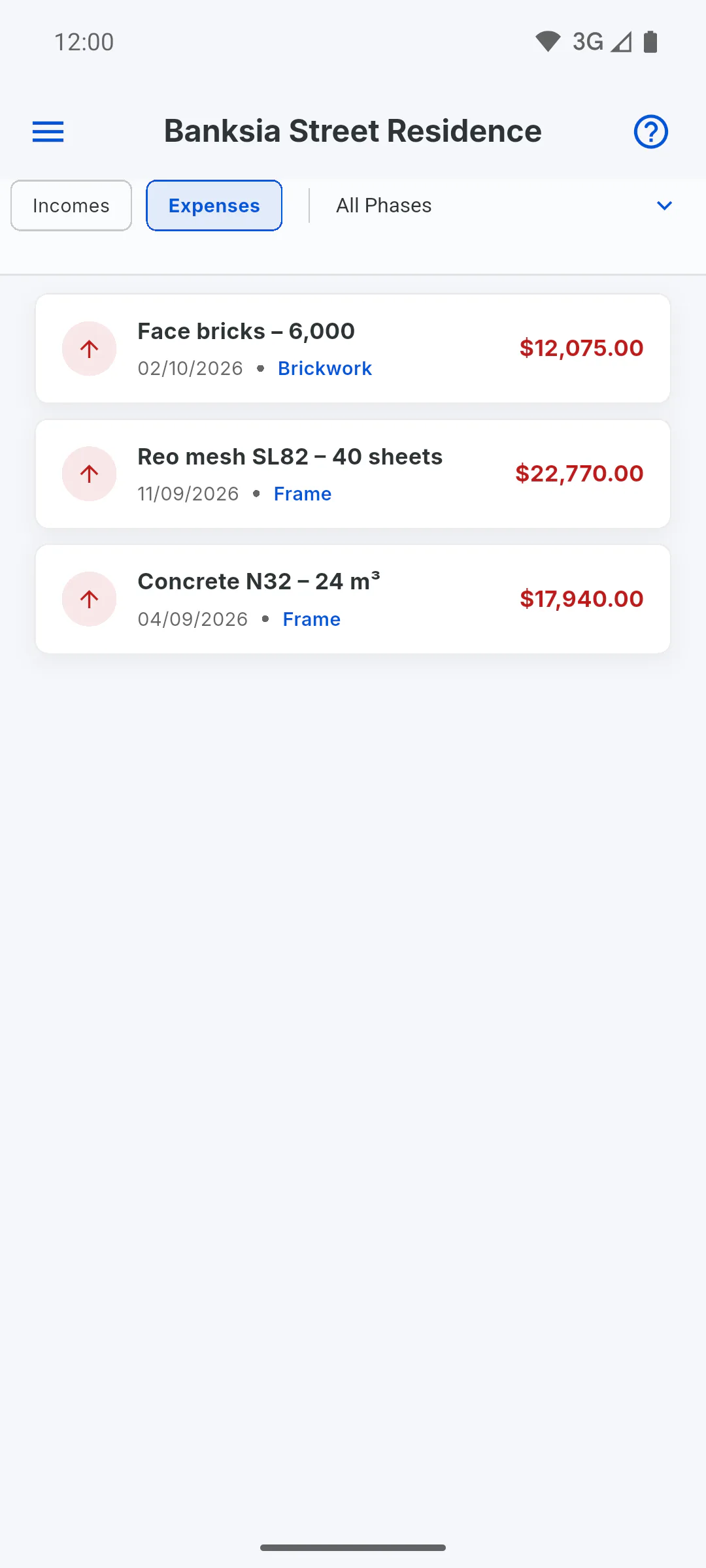
The list shows only entries that match every filter, and the dashboard totals follow along. If nothing matches, you'll see Nothing found. Tapping the filter button again hides the bar, but the filters stay on: to see everything, clear the search and go back to All and All Phases.
Step 3: Choose the statement
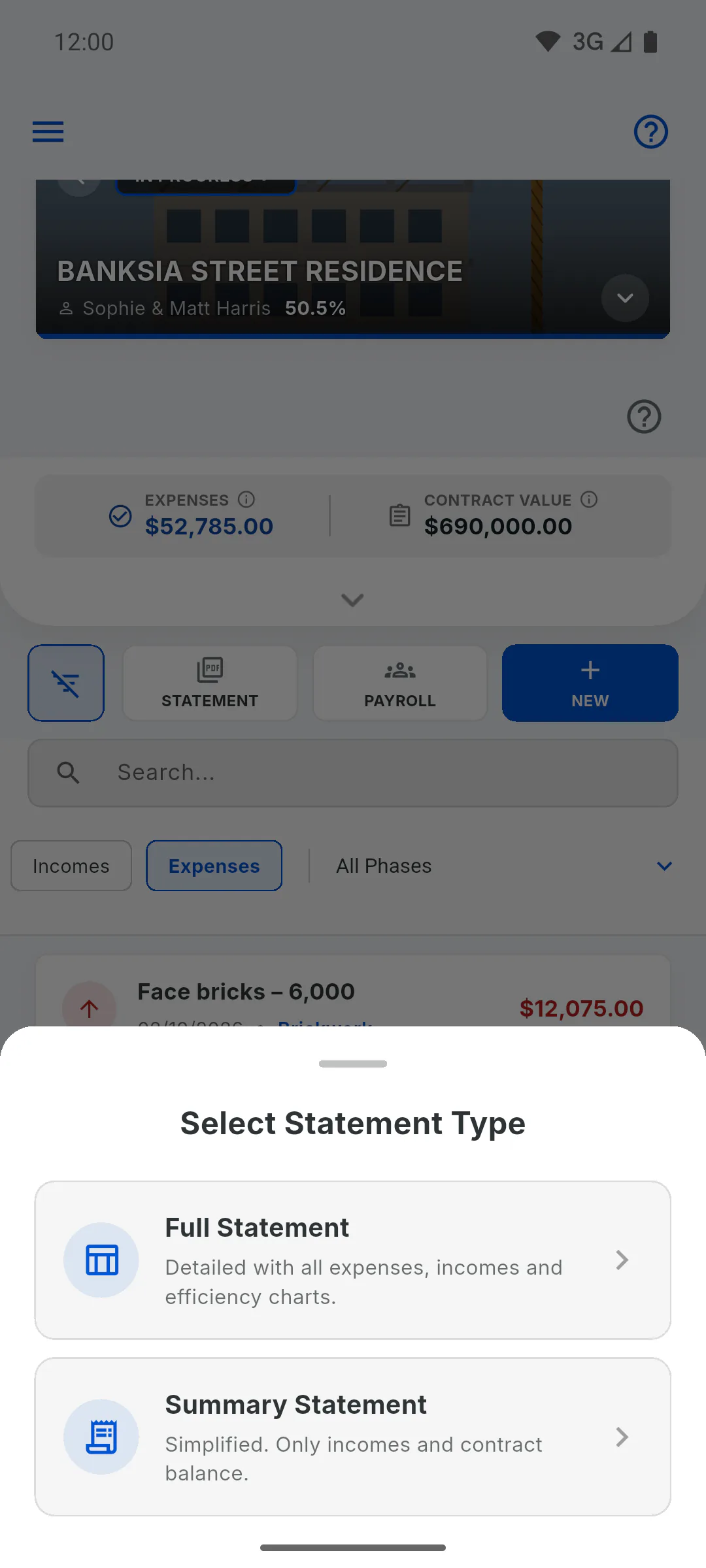
Tap Statement. Under Select Statement Type:
- Full Statement: income and expenses on the list, with totals for money in, money out and balance, a table with date, description, stage, type and amount, and the efficiency charts
- Summary Statement: income only, with the agreed amount, total received and balance still to receive
Step 4: Save or share
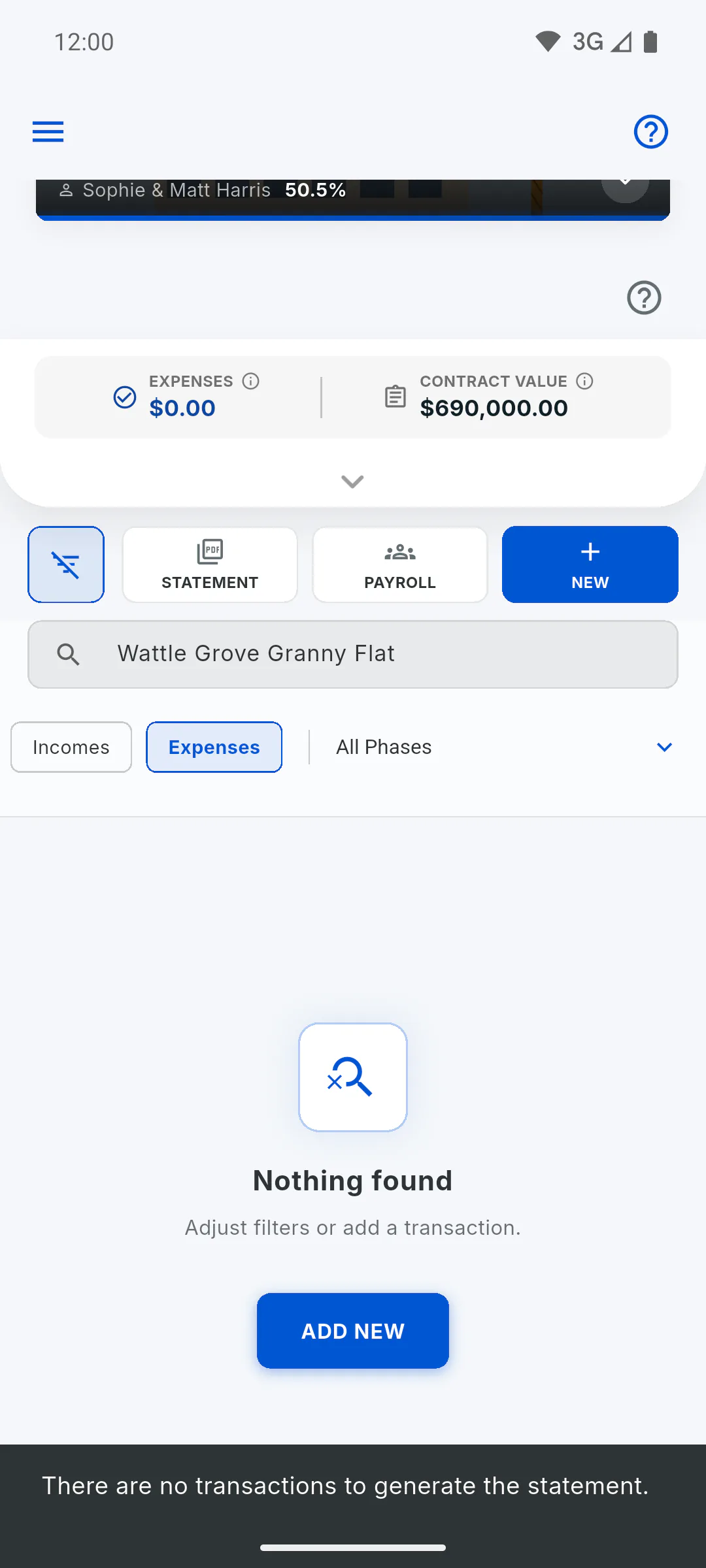
The PDF includes the entries on the list, with filters applied. On a mobile and on the web, the app opens the options to save or share; on a computer, choose where to save it and the PDF opens next. With an empty list, you'll see There are no transactions to generate the statement.
Step 5: On the free plan
Each statement counts towards the free plan's limit of 7 reports a month. On the free plan, the Full Statement carries a watermark: PDF report limit and watermark on the free plan
How to filter entries and generate the PDF statement
Search and filter Financial entries by text, type or stage, and generate the full or summary PDF statement from what is on the list.
For managers5 steps
Didn't find what you were looking for?
Chat with support on WhatsApp or raise a ticket in the app.