
Step 1: Who can do it
- Edit: the person who registered the occurrence or the project owner, only while it's Open.
- Delete: only the project owner, whether it's open or resolved.
The engineer and team members can only edit occurrences they registered themselves and can't delete any. If you can't do either, the menu doesn't appear.
Step 2: Open the occurrence's menu
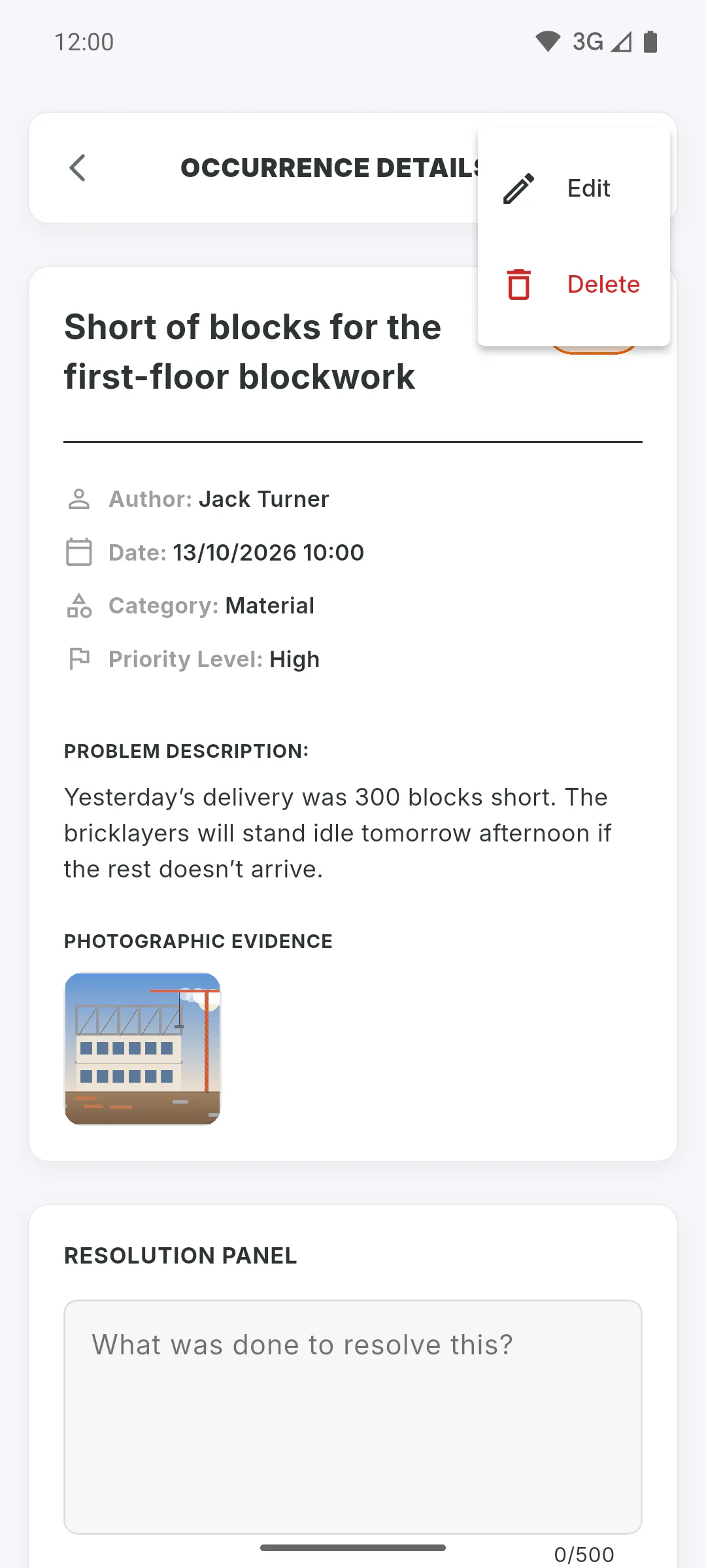
In Occurrences, tap the occurrence. In Occurrence Details, tap the three dots in the top corner and choose Edit or Delete.
Step 3: Edit it
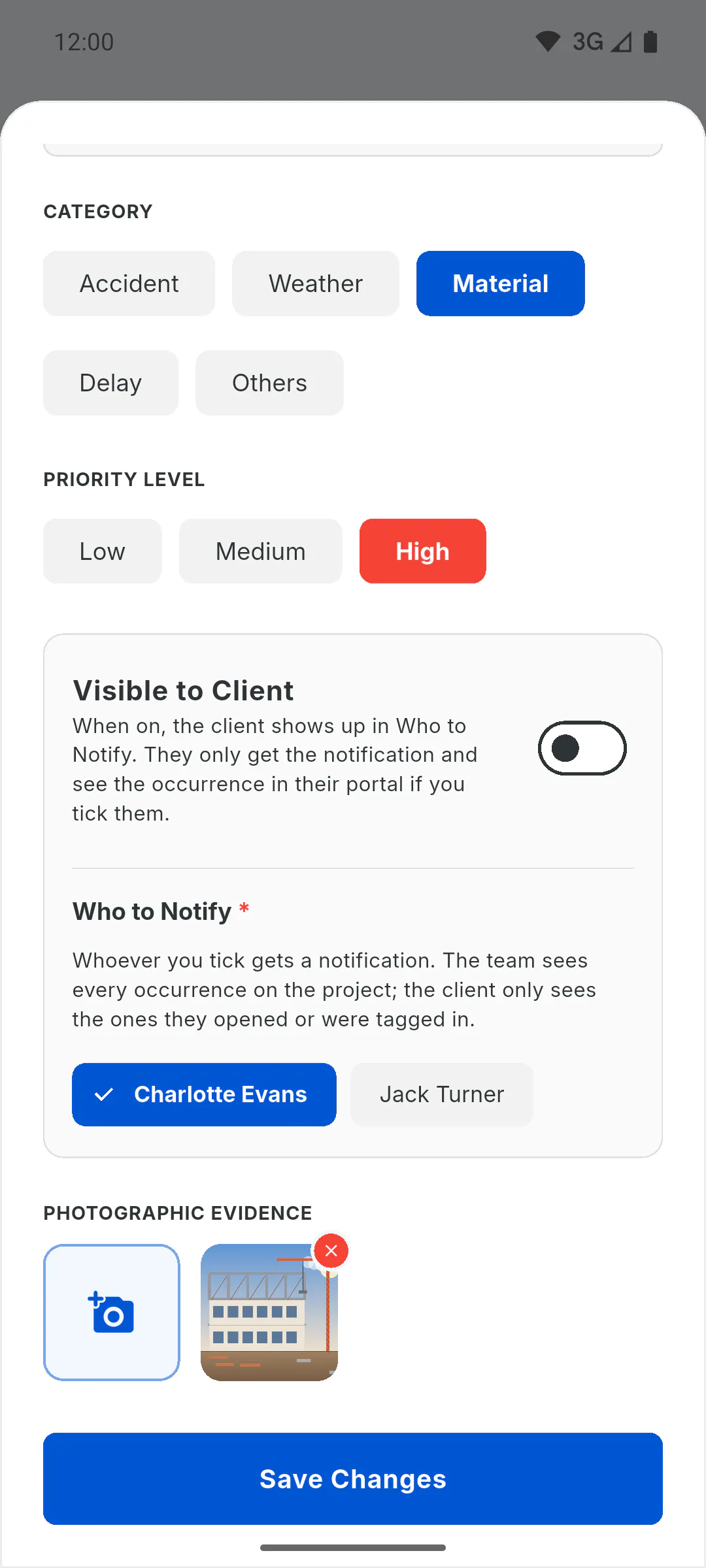
The form opens as Edit Occurrence, with the current details. You can change the title, description, category, priority, Visible to Client, Who to Notify and photos: tap the red X to remove a photo or the square with the camera to add one. Tap Save Changes. You'll see Occurrence updated. and the details will show Edited on.
Step 4: What happens when you save
- people you've just tagged get a notification; people already tagged don't
- photos you removed from the occurrence are deleted
- if someone resolved the occurrence while you were editing, you'll see This occurrence has already been resolved and can no longer be edited.
Edit while online: the form only closes once everything is saved.
Step 5: Delete it
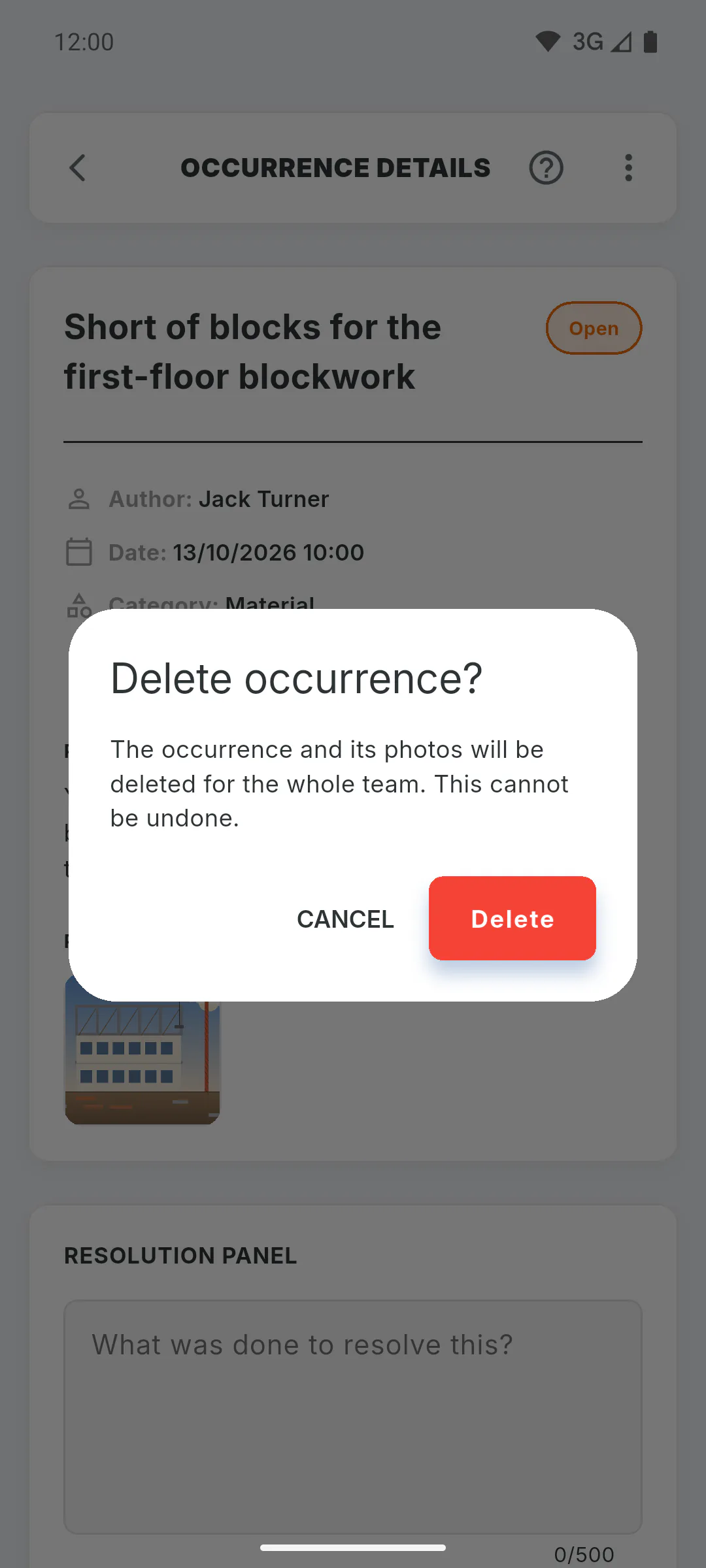
Choose Delete and confirm with Delete when asked Delete occurrence?. The occurrence and all its photos, including the ones of the fix, are deleted for everyone, and this can't be undone. You'll see Occurrence deleted.
How to edit or delete an occurrence (and who can)
Fix an occurrence while it is still open, or delete it for good. See who can do what and what changes when you save.
For managers and team members5 steps
Didn't find what you were looking for?
Chat with support on WhatsApp or raise a ticket in the app.