
Step 1: Invite your client
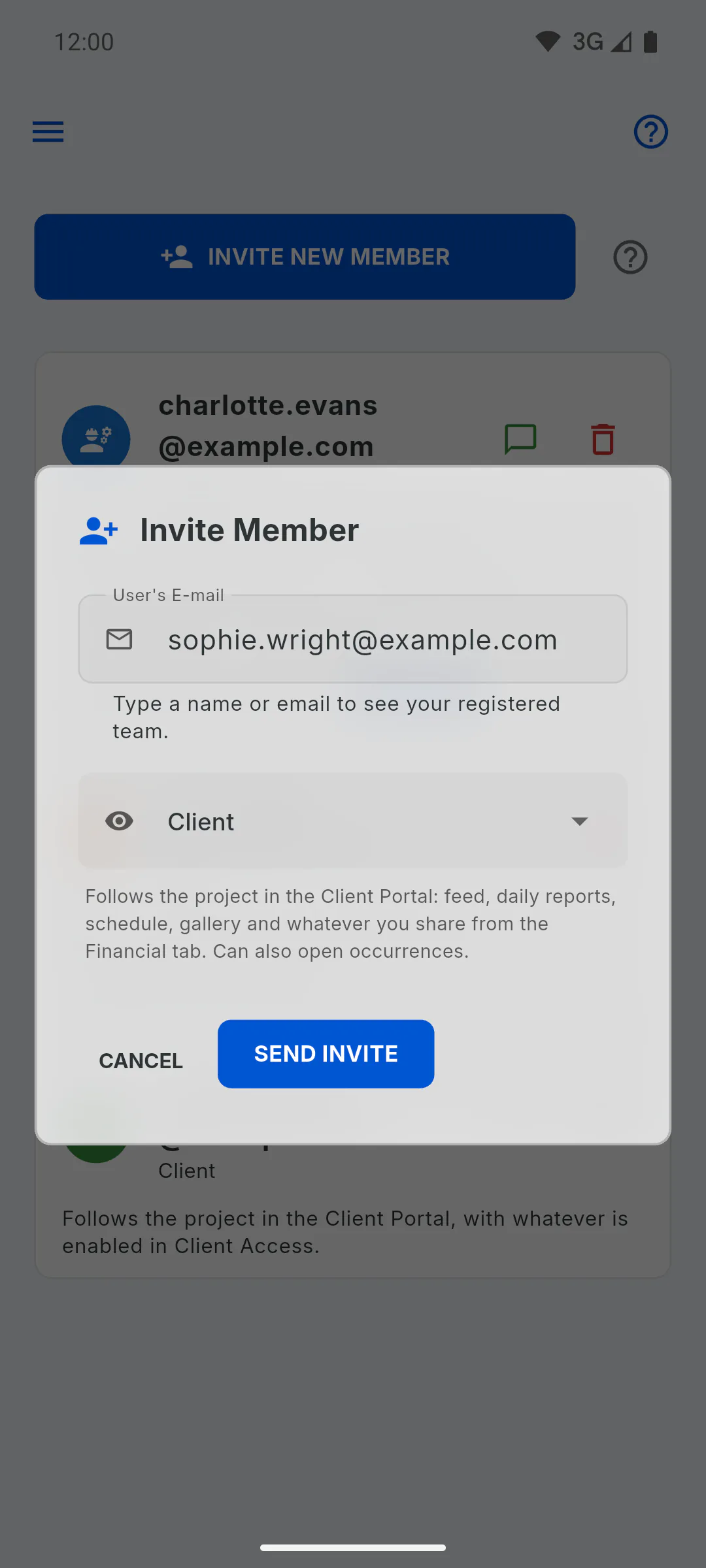
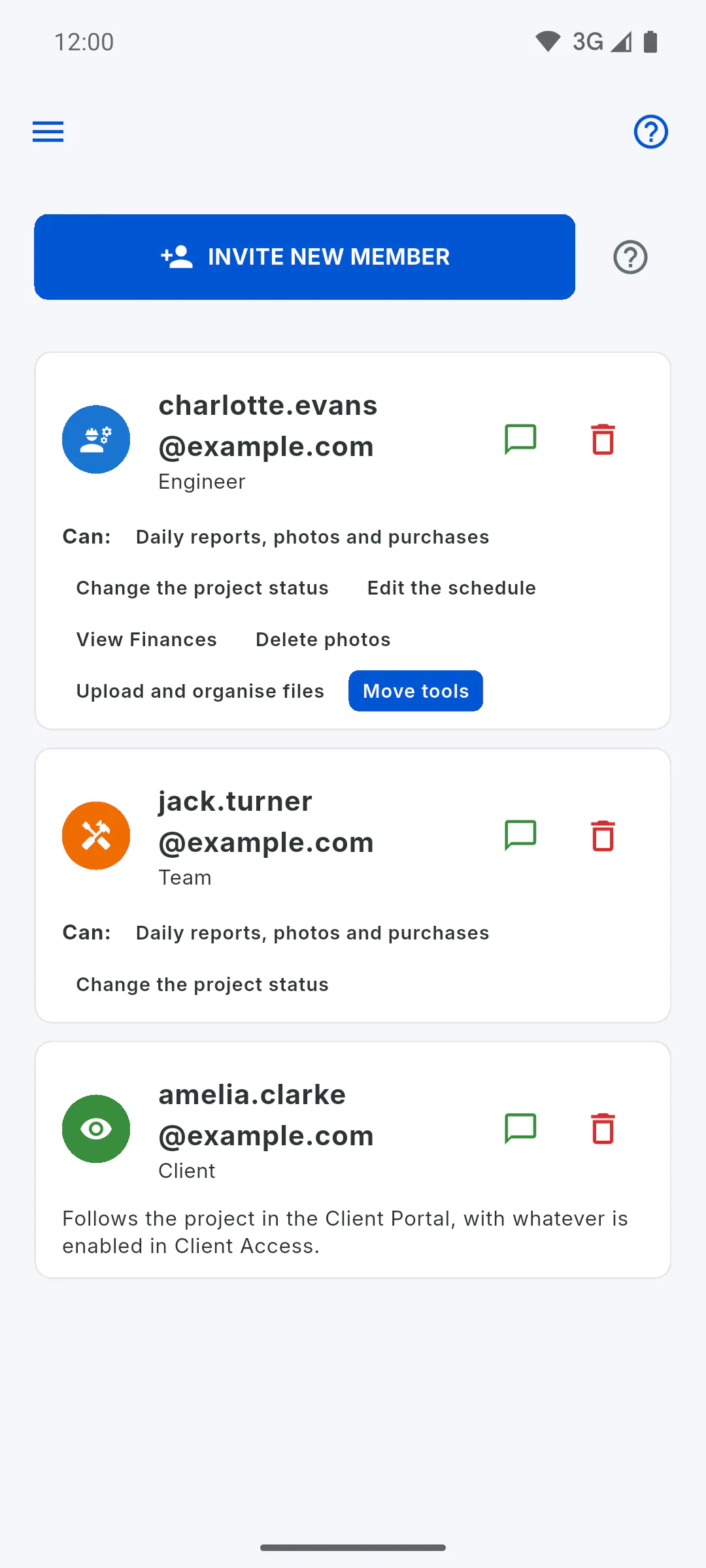
Open the project, tap Team in the menu, then Invite New Member. Type the client's email, choose Client and tap Send Invite. Only the project owner can invite people.
- How to invite someone to your project
- The free plan has a limit: How many invitations can I send on the free plan
Step 2: Let them know on WhatsApp
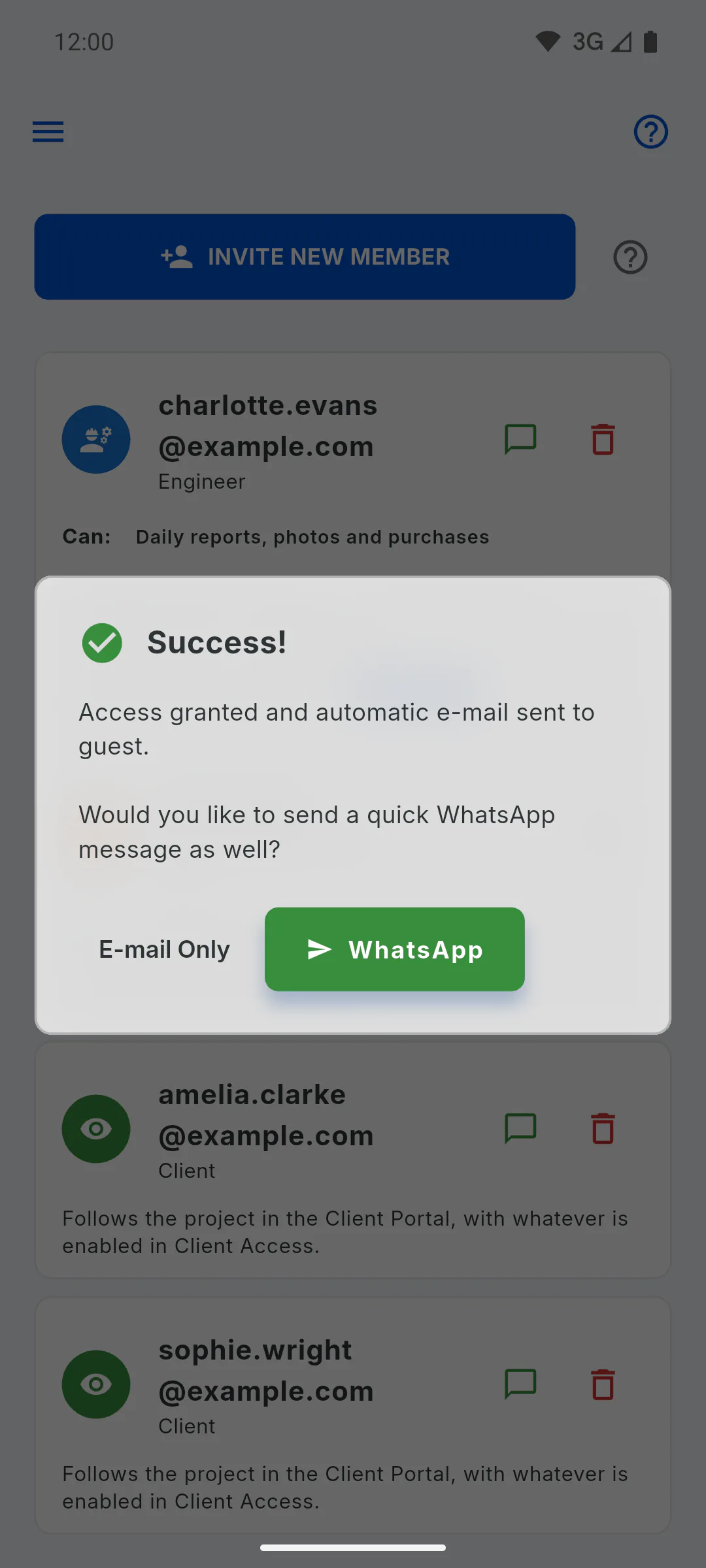
After the invitation, Success! appears: tap WhatsApp to send a ready-made message with the sign-up link, or tap E-mail Only. Either way, the client gets an email with the link.
- The ready-made WhatsApp message comes in your app's language. You can edit the message in WhatsApp before sending it.
Step 3: Your client opens the Portal
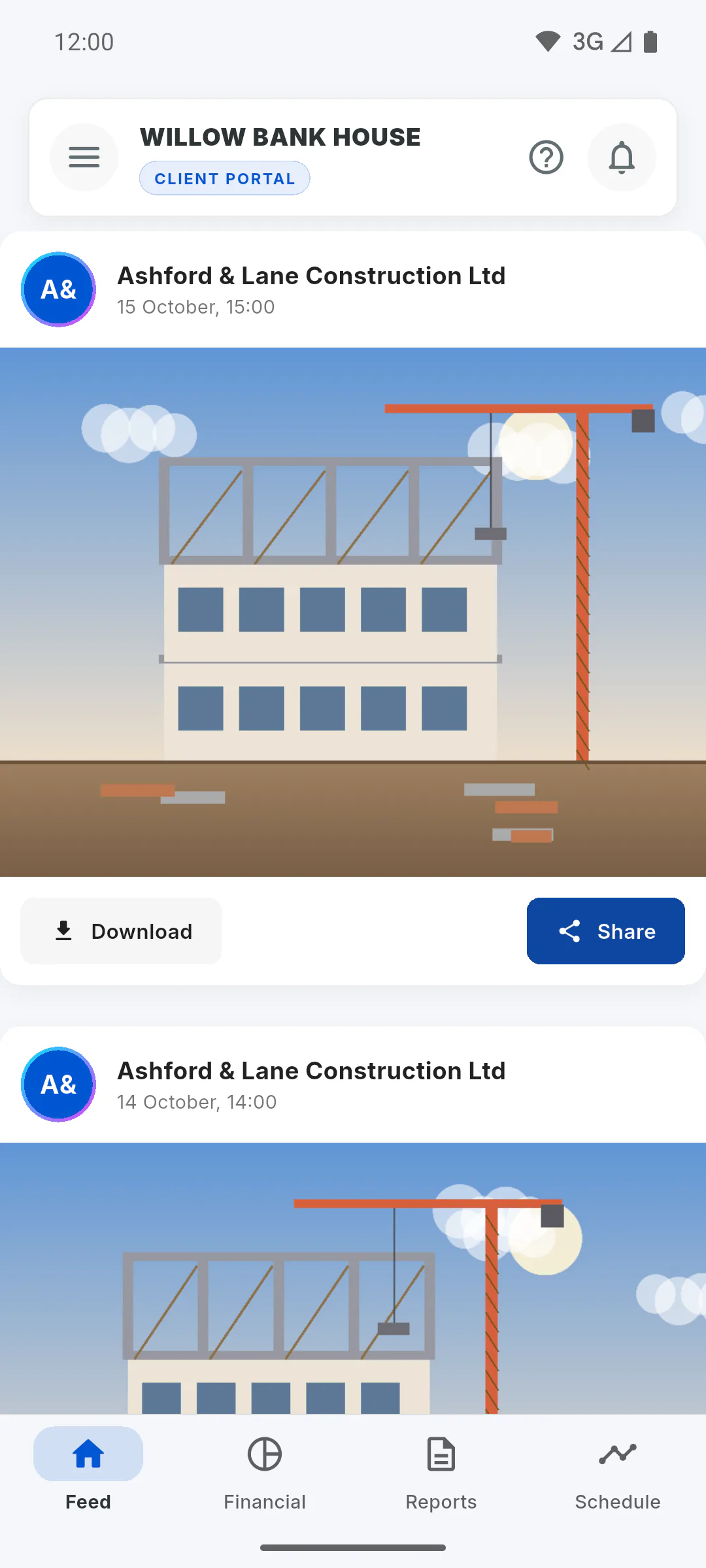
The client creates an account with the same email the invitation went to and confirms that email. When they sign in, the app goes straight to the Client Portal, with the Feed, Financial, Reports and Schedule tabs.
Step 4: Unlock Client Access (PRO)
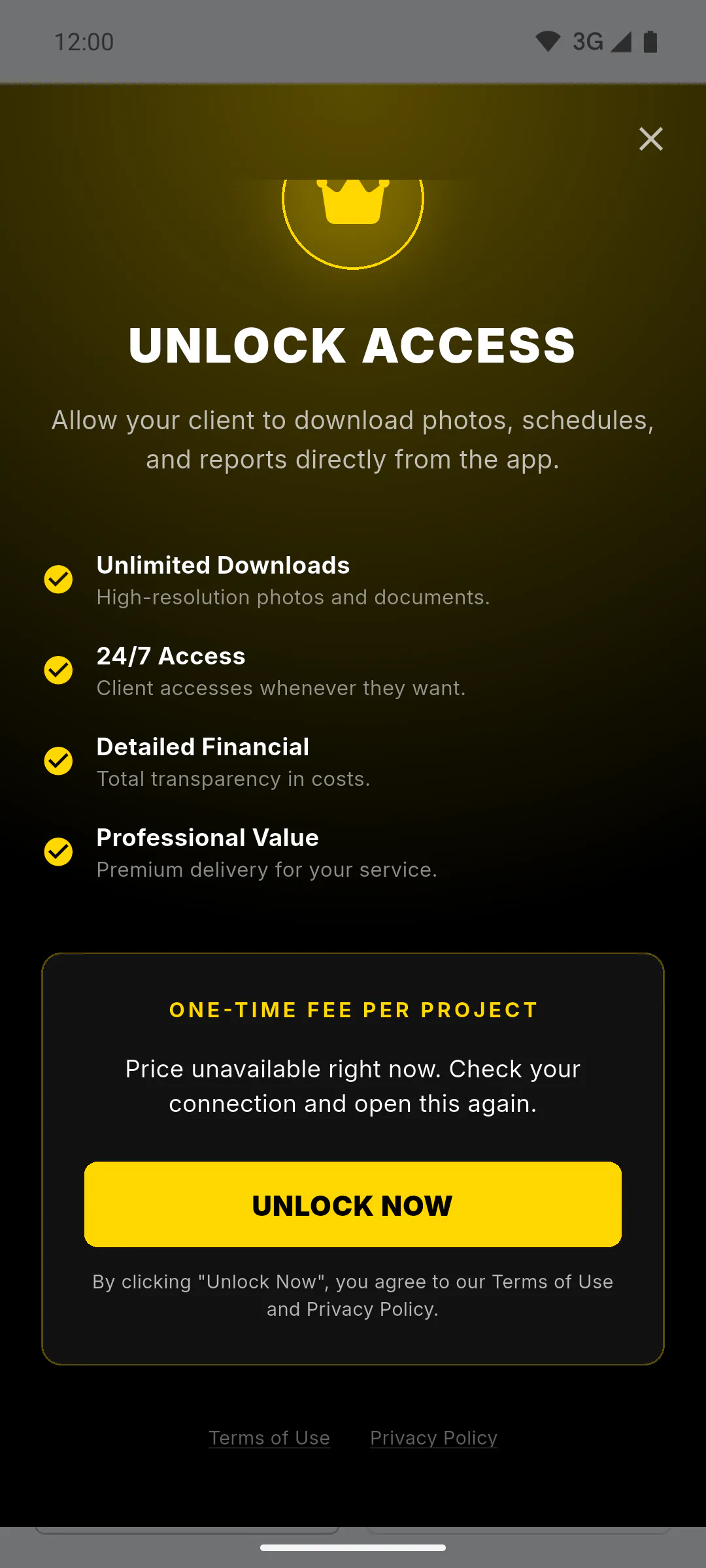
At no cost, your client already sees the album photos, daily reports, and a summary of the schedule and financials. To unlock downloads and the full views, tap the Client Access card at the bottom of the project menu, then Unlock Now. It's a one-time fee per project, for the owner on the PRO plan.
Step 5: Choose what they see
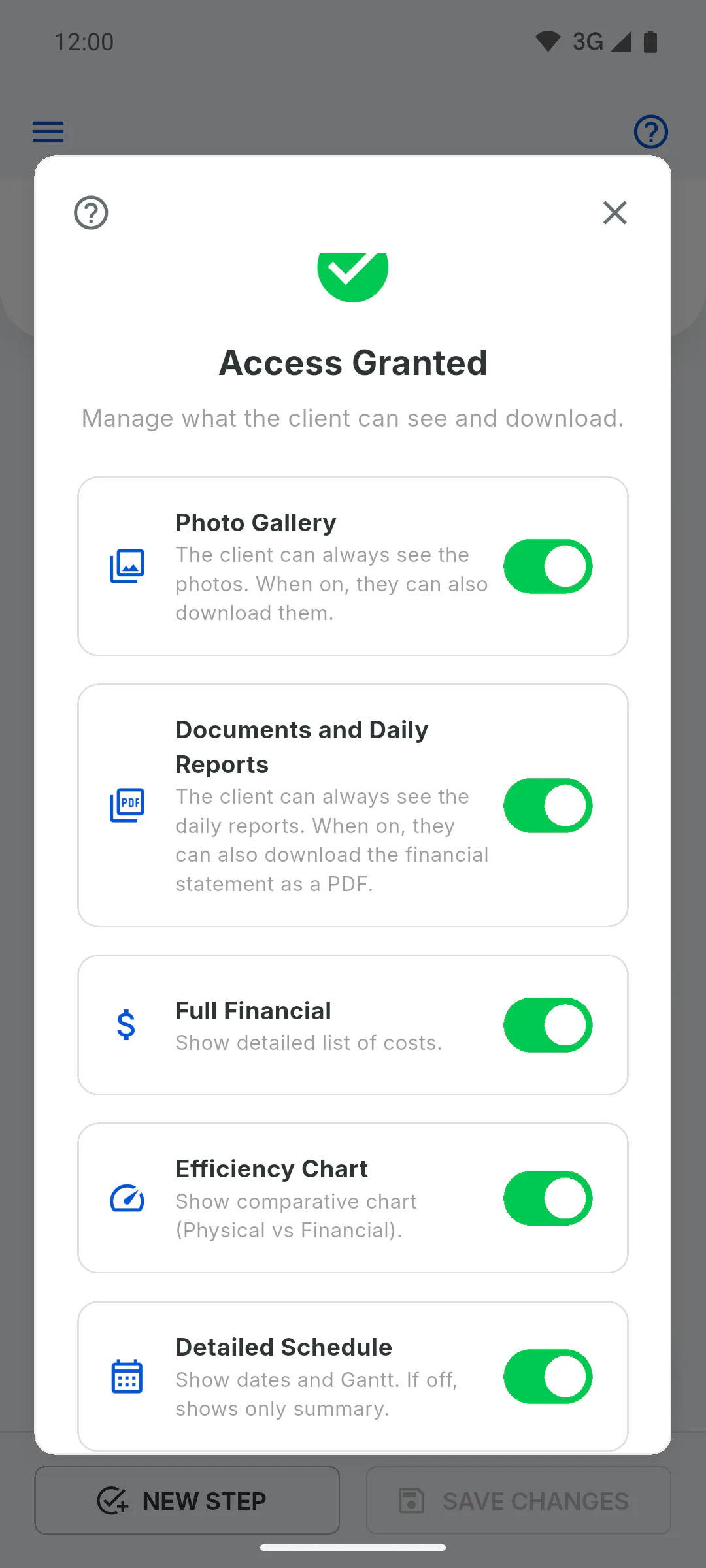
Once access is unlocked, the card shows Configure. Turn on the switches you want, such as Photo Gallery, Full Financial and Detailed Schedule, and tap Save Changes.
Step 6: Keep the Portal up to date
The Portal shows what you record on the project:
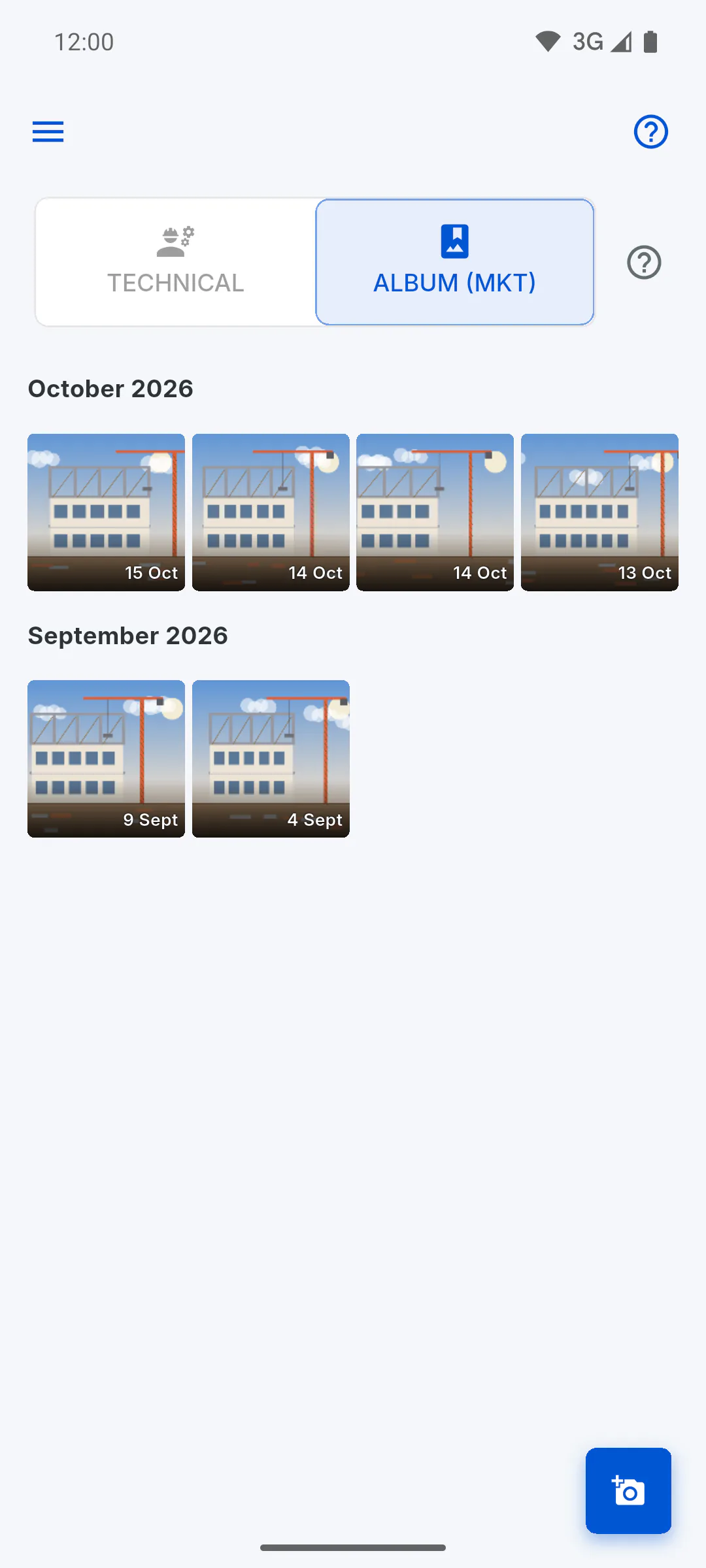
- photos added in Gallery, on the Album (MKT) tab, show in the Feed: How to add photos to the Album
- every saved daily report shows on the Reports tab: How to create a daily report
- progress saved on the schedule updates progress and deadline: How to update stage progress
Step 7: Automatic notifications
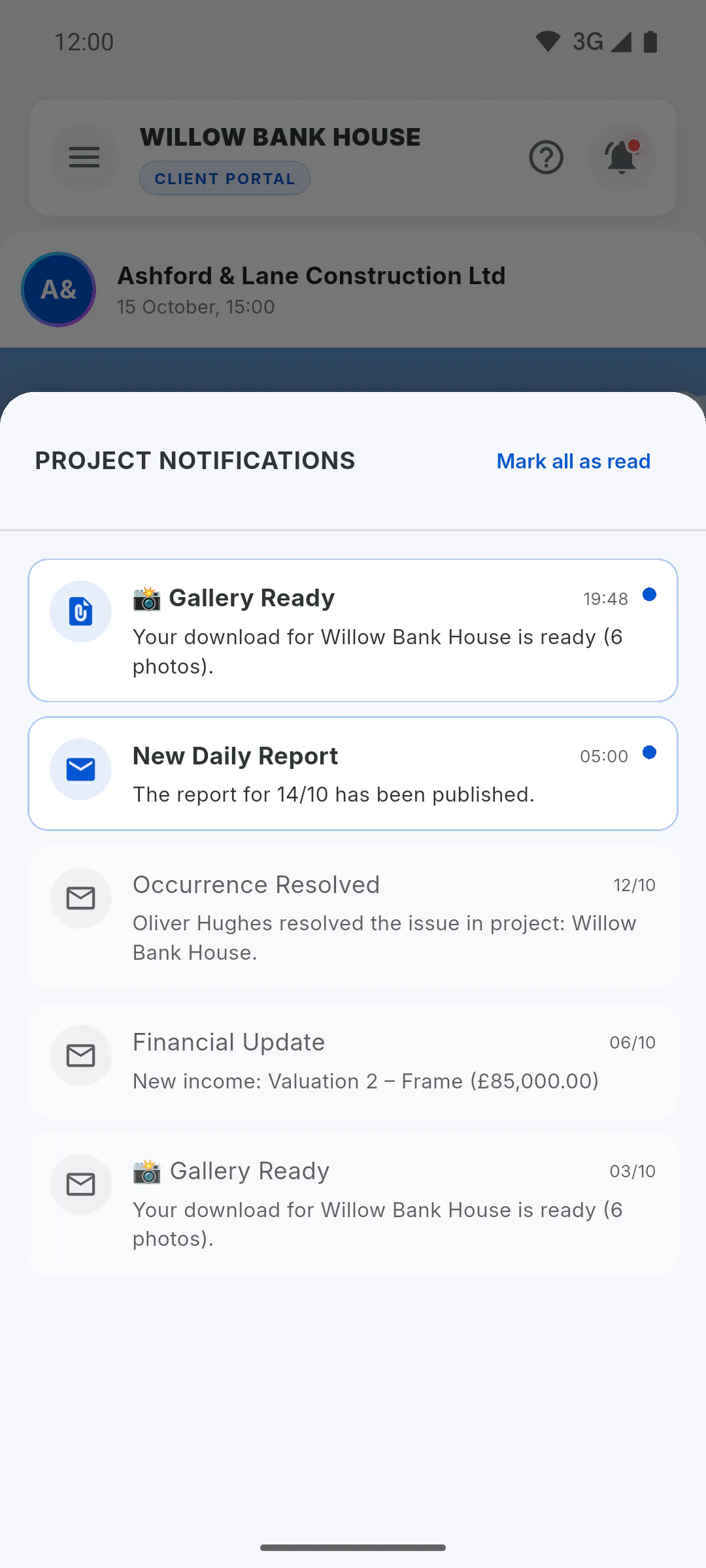
Your client gets a bell notification for each new daily report saved online and for each entry in Financial, with its description and amount, even if they only see the financial summary. They only hear about occurrences you choose to show them.
Step 8: When the project ends
To end their access, remove the client under the project's Team. If the project is at 70% or more, you can give them a 15-day grace period to download the photos. With Photo Gallery on and the project at 100%, they can request the package with all photos.
Invite your client and show the project in the Portal
From invitation to day-to-day: invite your client, unlock Client Access, choose what they see and keep the Portal up to date with photos, reports and the schedule.
For managers8 steps
Didn't find what you were looking for?
Chat with support on WhatsApp or raise a ticket in the app.