
Step 1: New daily report
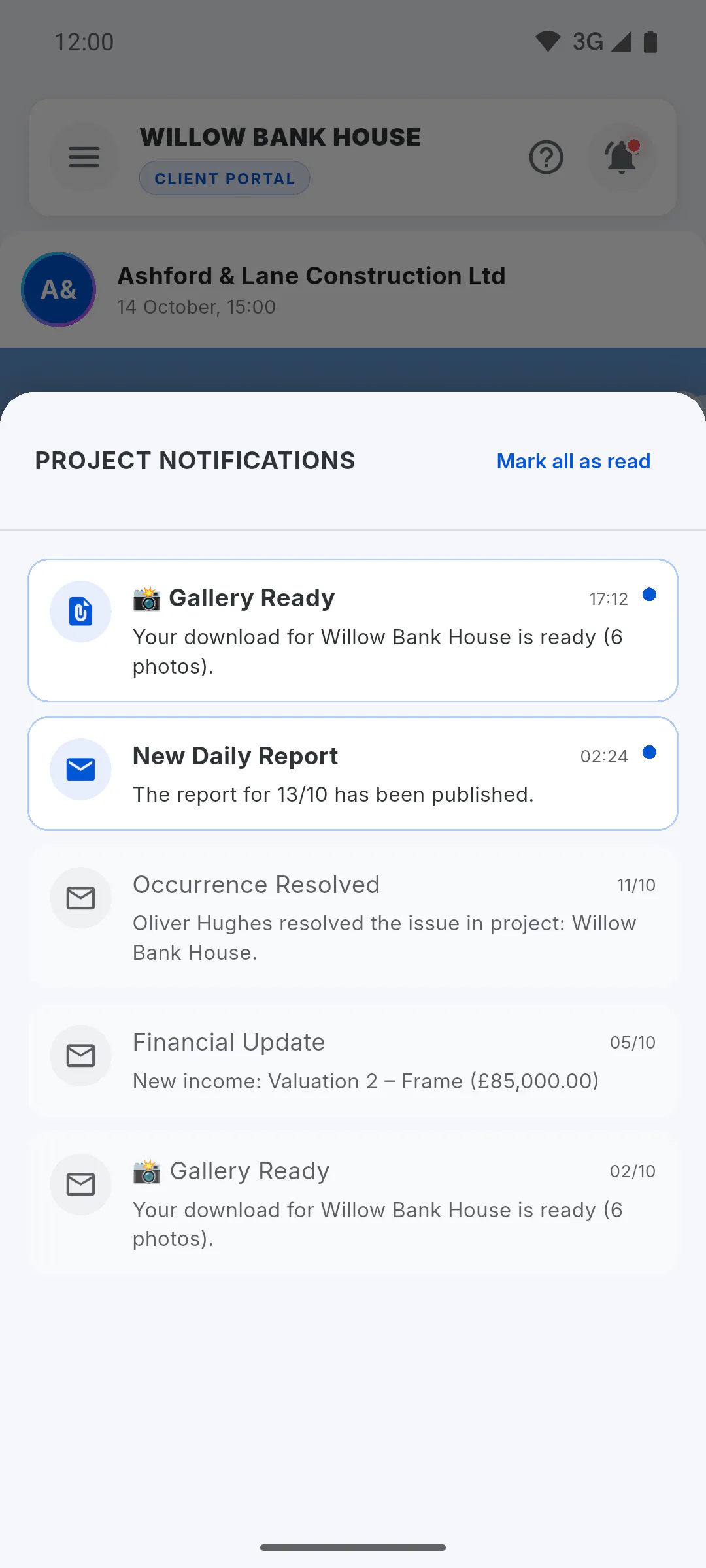
When a new daily report is saved online, the client gets a New Daily Report notification in the Portal bell, with the report's date. A report saved offline doesn't trigger it. On a mobile (Android or iPhone), with the app's notifications allowed, the client may also get the new report alert outside the app.
Step 2: Financial entries
Each new income or expense entered in the project's financials sends the client a notification titled Financial Update, with the entry's description and amount. This happens even if the client only sees the financial summary. Editing an entry doesn't send one.
Step 3: Occurrences
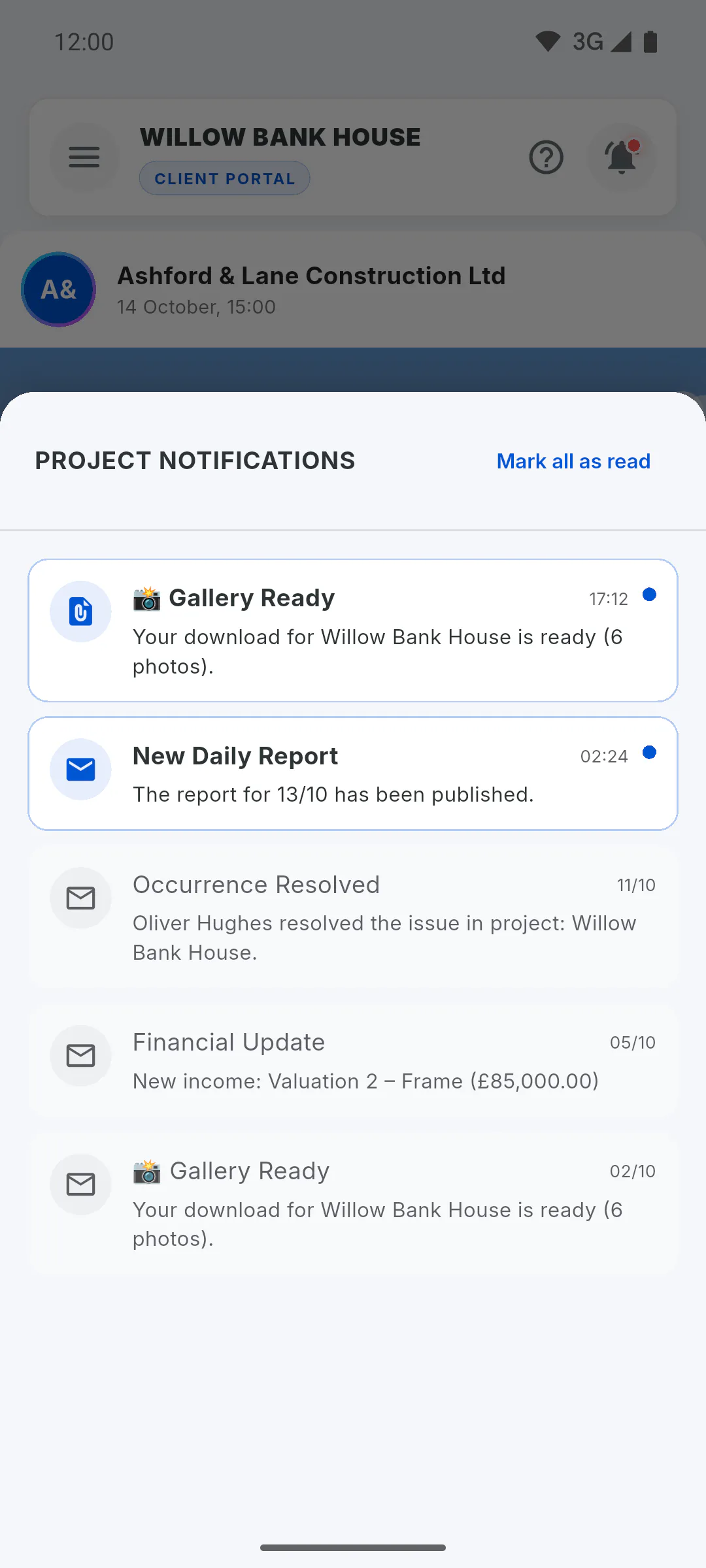
The client is only notified about an occurrence when you turn on Visible to Client and tag the client under Who to Notify. When that occurrence is resolved, they get Occurrence Resolved.
Step 4: Emails and photo package
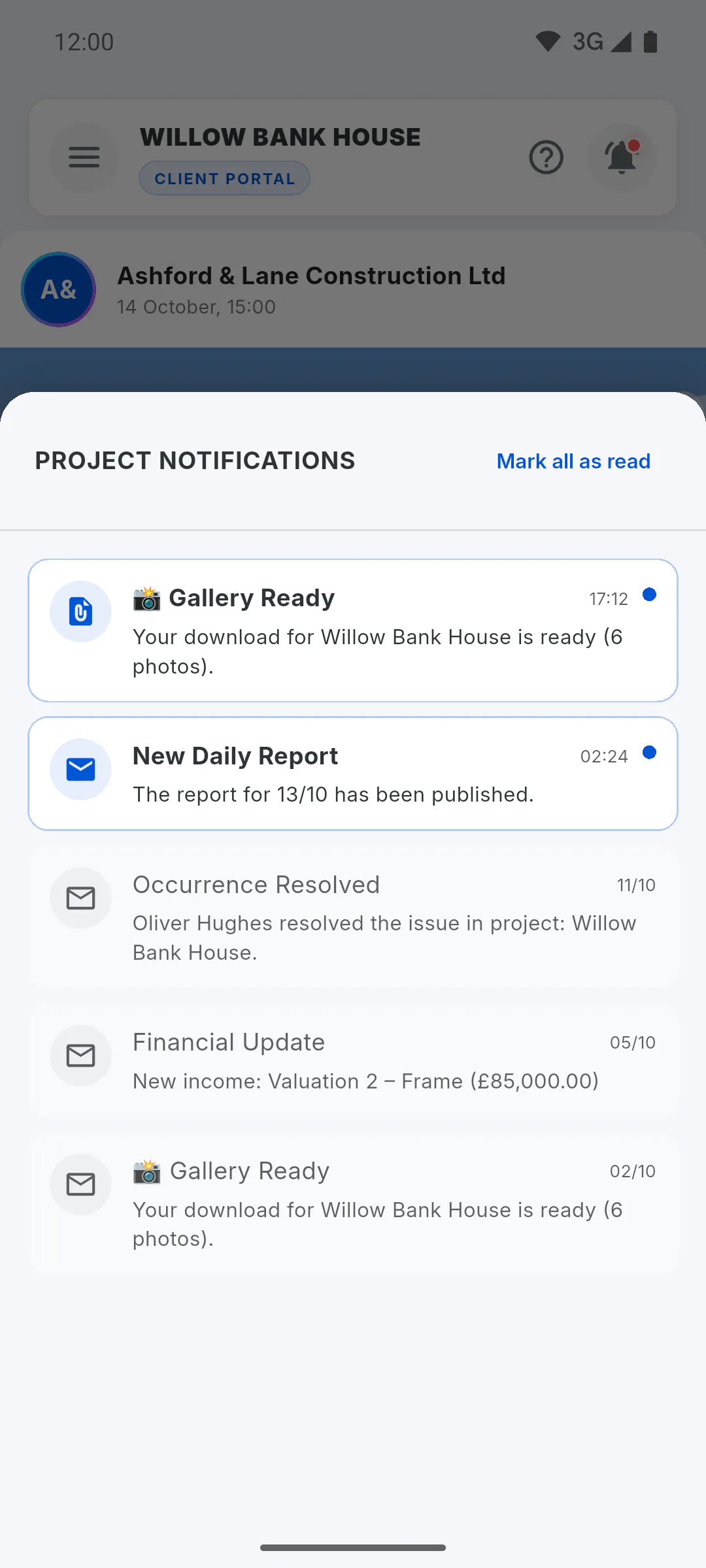
The client gets an email when invited, when they enter the grace period and when their access is removed. When they request the package with every photo, the download link arrives in their bell.
Step 5: Who receives them
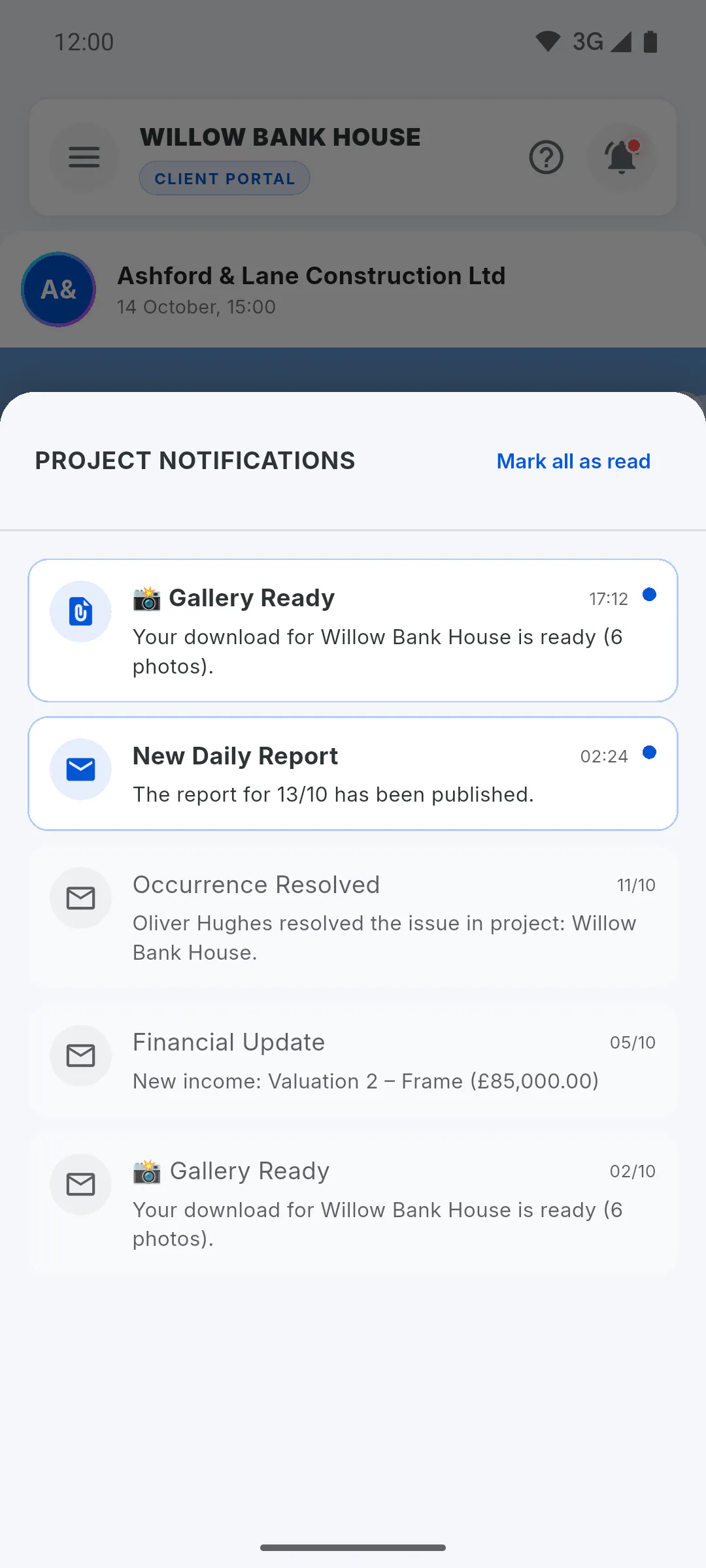
Bell notifications reach clients who have signed in to the app at least once with the invited email. Daily report and financial notifications go to clients, and to you as project owner when someone else adds them; invited crew members don't get them in the bell.
Which notifications your client gets automatically
Find out which actions by you and your team notify the client in the Portal bell or by email: new daily reports, financial entries, occurrences and removal.
For managers5 steps
Didn't find what you were looking for?
Chat with support on WhatsApp or raise a ticket in the app.