
Step 1: How the manager removes the client
In the project, the manager opens Team, finds the client's email and taps the bin icon (Remove Member). Only the project owner can remove members. What happens next depends on the project's progress.
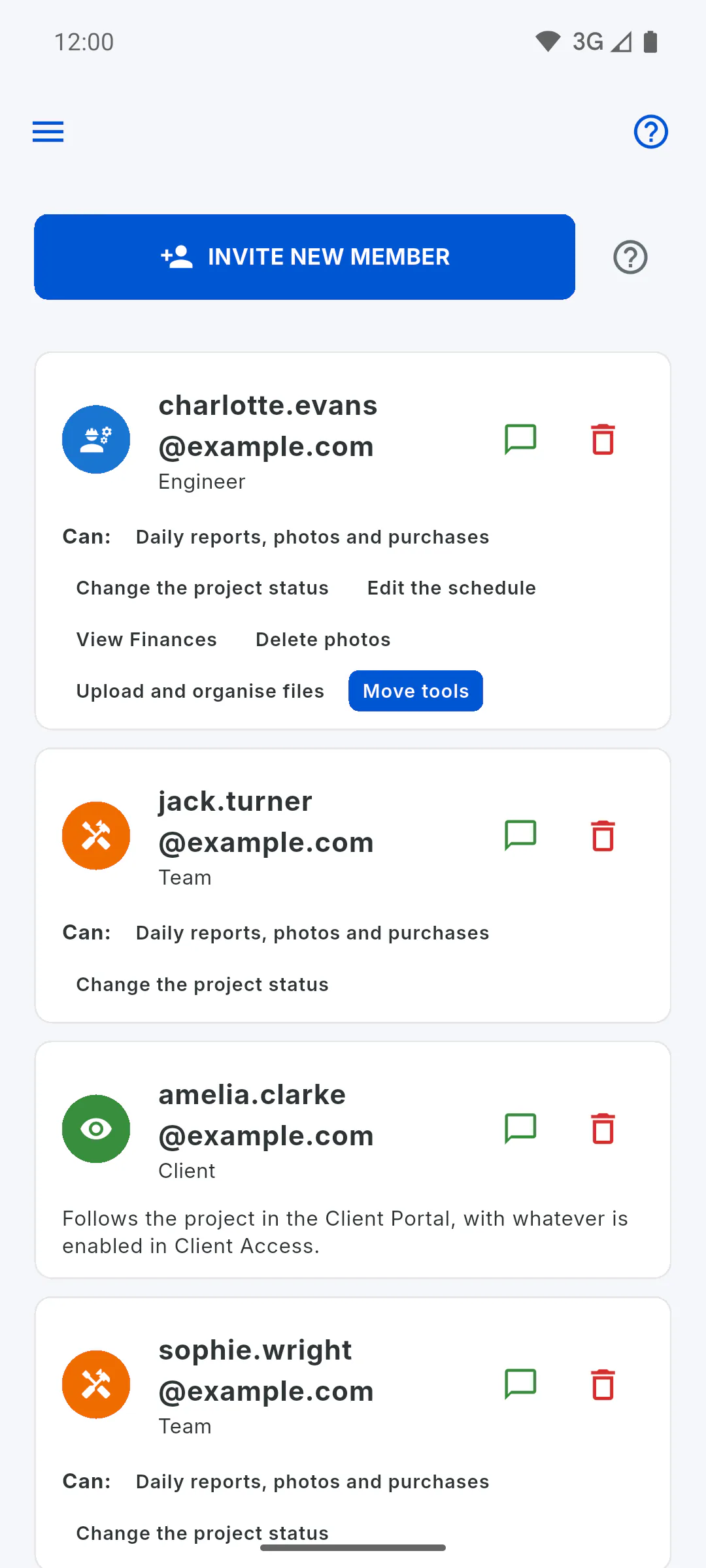
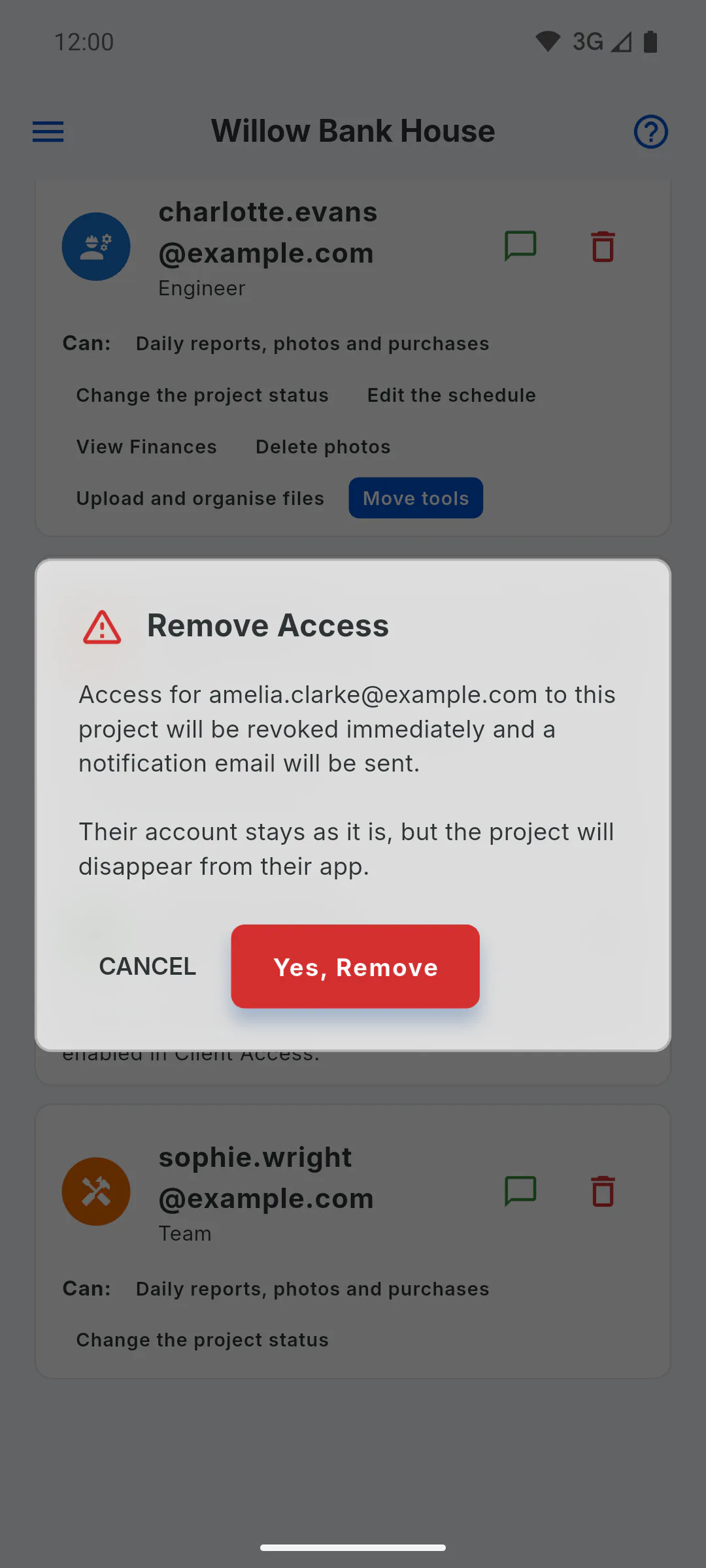
Step 2: Project below 70%
Remove Access appears. On Yes, Remove, the client's access ends right away and they get an email about it. Their account still exists, but the project disappears from their app.
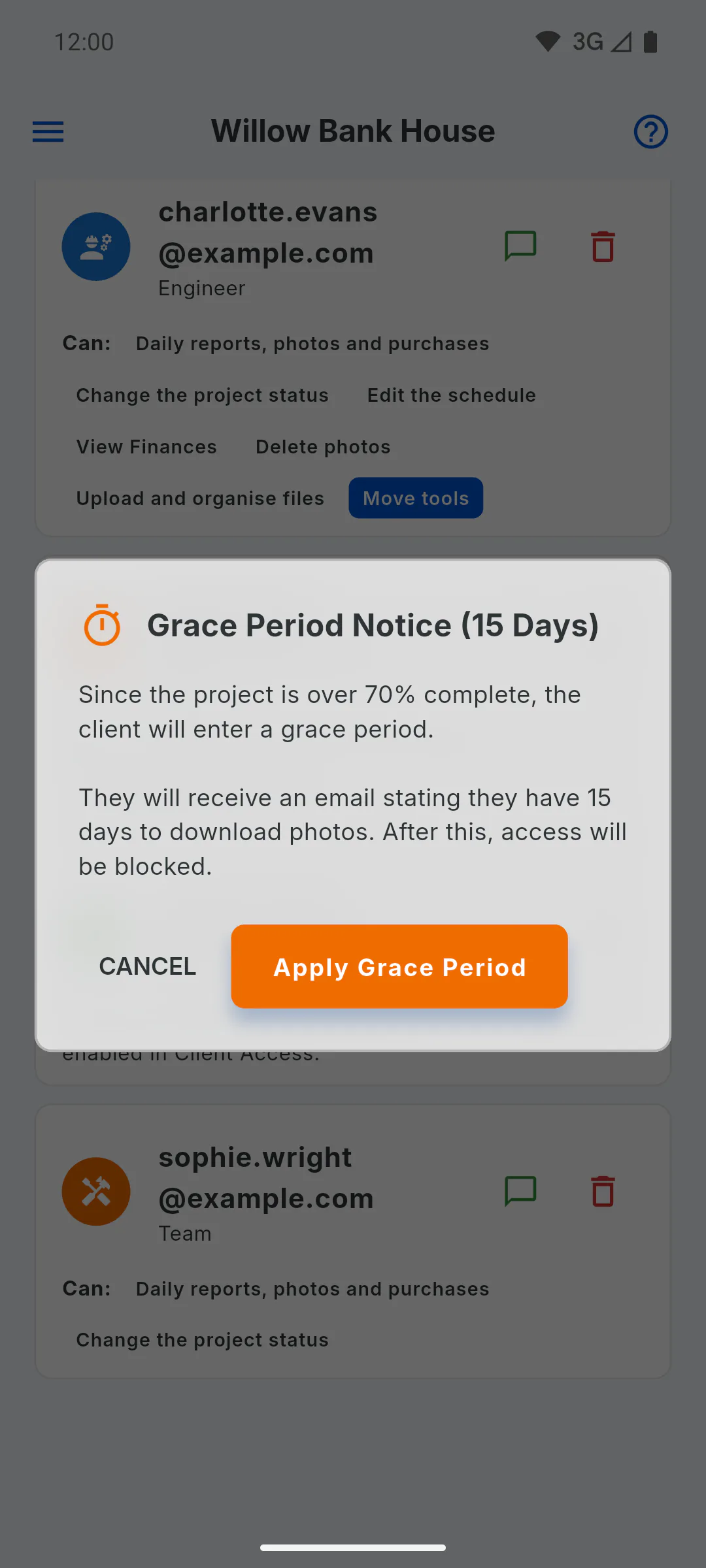
Step 3: Project at 70% or more
Grace Period Notice (15 Days) appears. On Apply Grace Period, the client gets an email and keeps access for 15 days to download the photos. In Team, they show an orange tag with the days left.
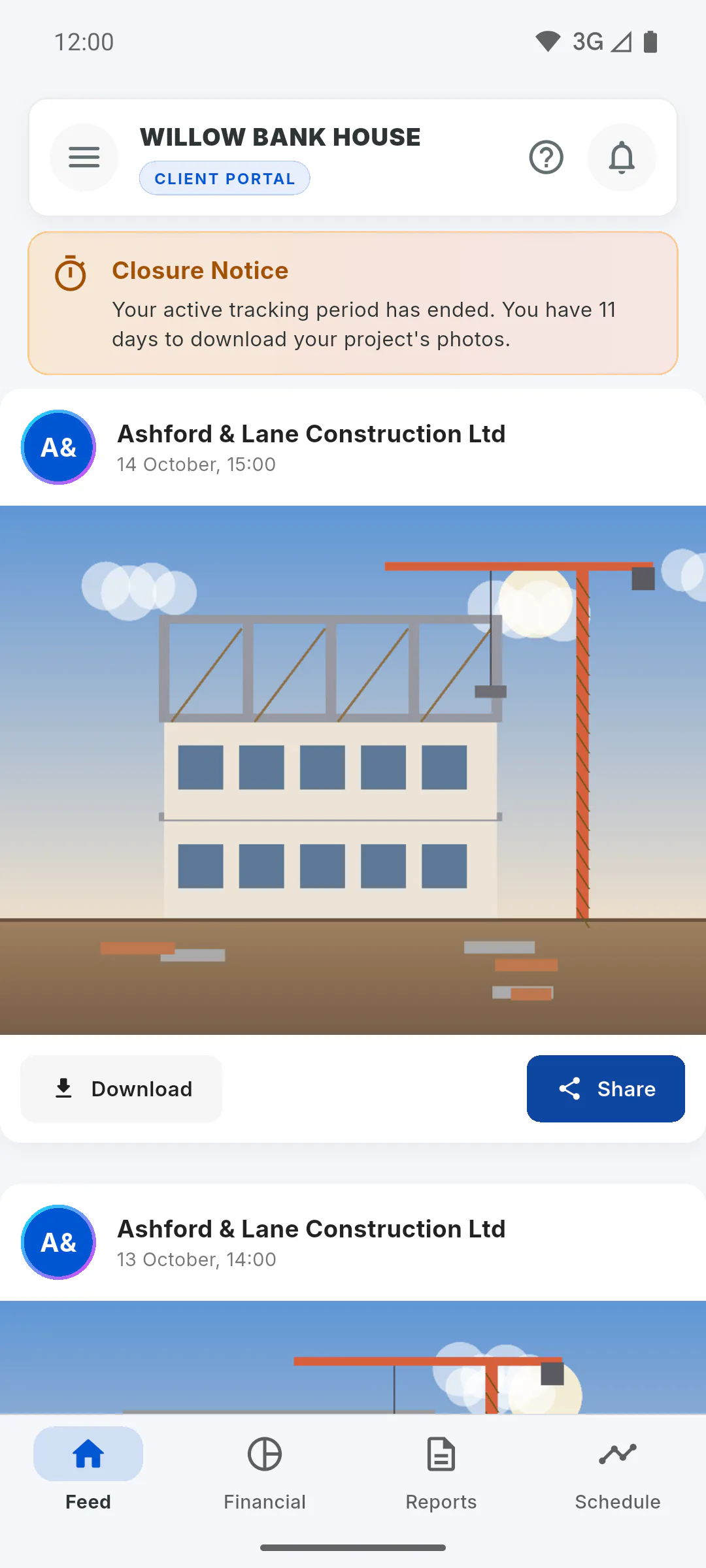
Step 4: What the client sees during the grace period
The Portal shows a Closure Notice with the days left. During this time, Download All in the Project Gallery is released even if the project is below 100%, as long as the manager has allowed photo downloads.
Step 5: End of the grace period
Once the 15-day period is over, the client is removed from the project and gets an email. This doesn't happen on a set day: the removal runs the first time the manager opens the project's Team after the deadline. To cut access sooner, the manager taps the block icon (Force Delete) and confirms with Yes, Remove.
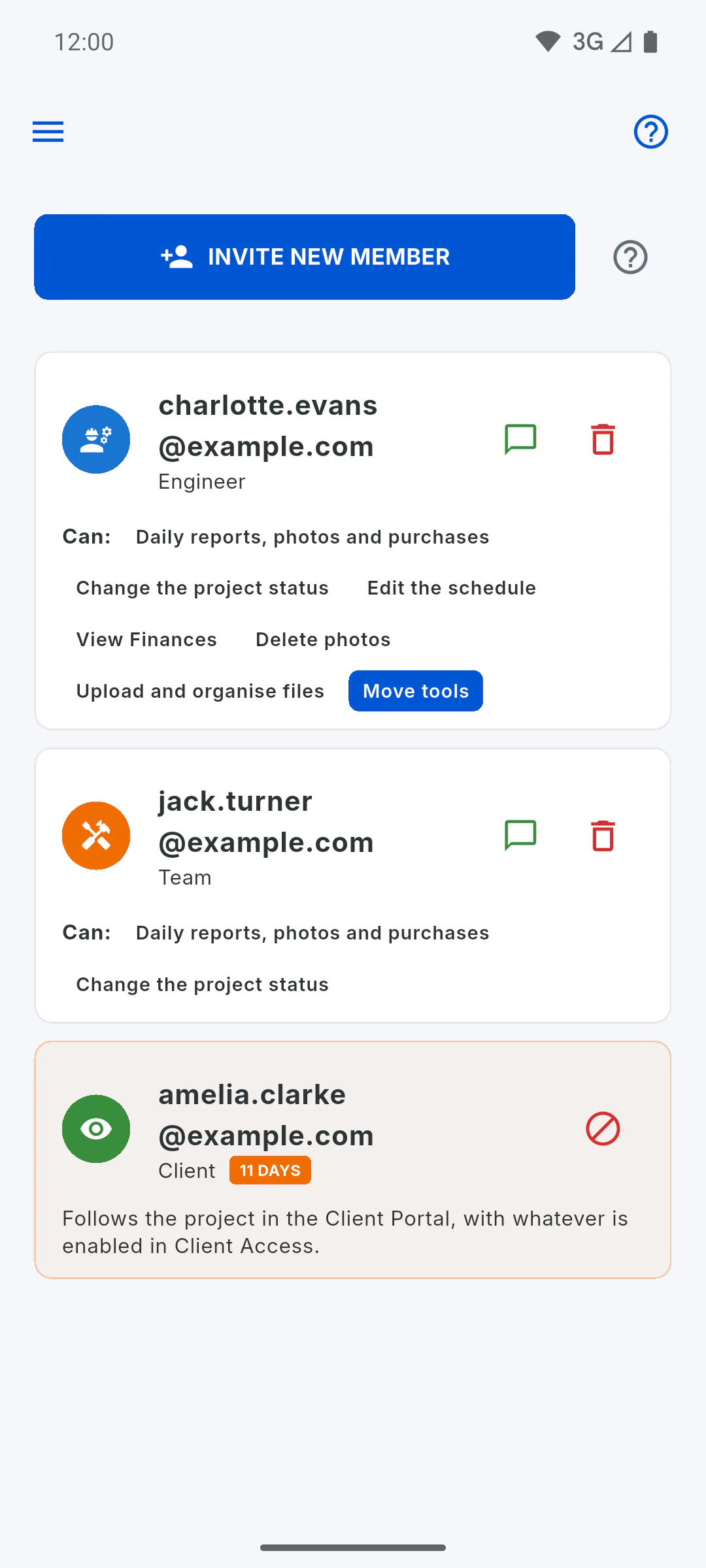
Removing the client: notice and grace period
See what happens when the manager removes the client from a project: immediate removal below 70% progress, or a 15-day grace period to download the photos.
For managers and clients5 steps
Didn't find what you were looking for?
Chat with support on WhatsApp or raise a ticket in the app.