
Step 1: Unlock Client Access
Clients can only log occurrences on a project with Client Access unlocked.
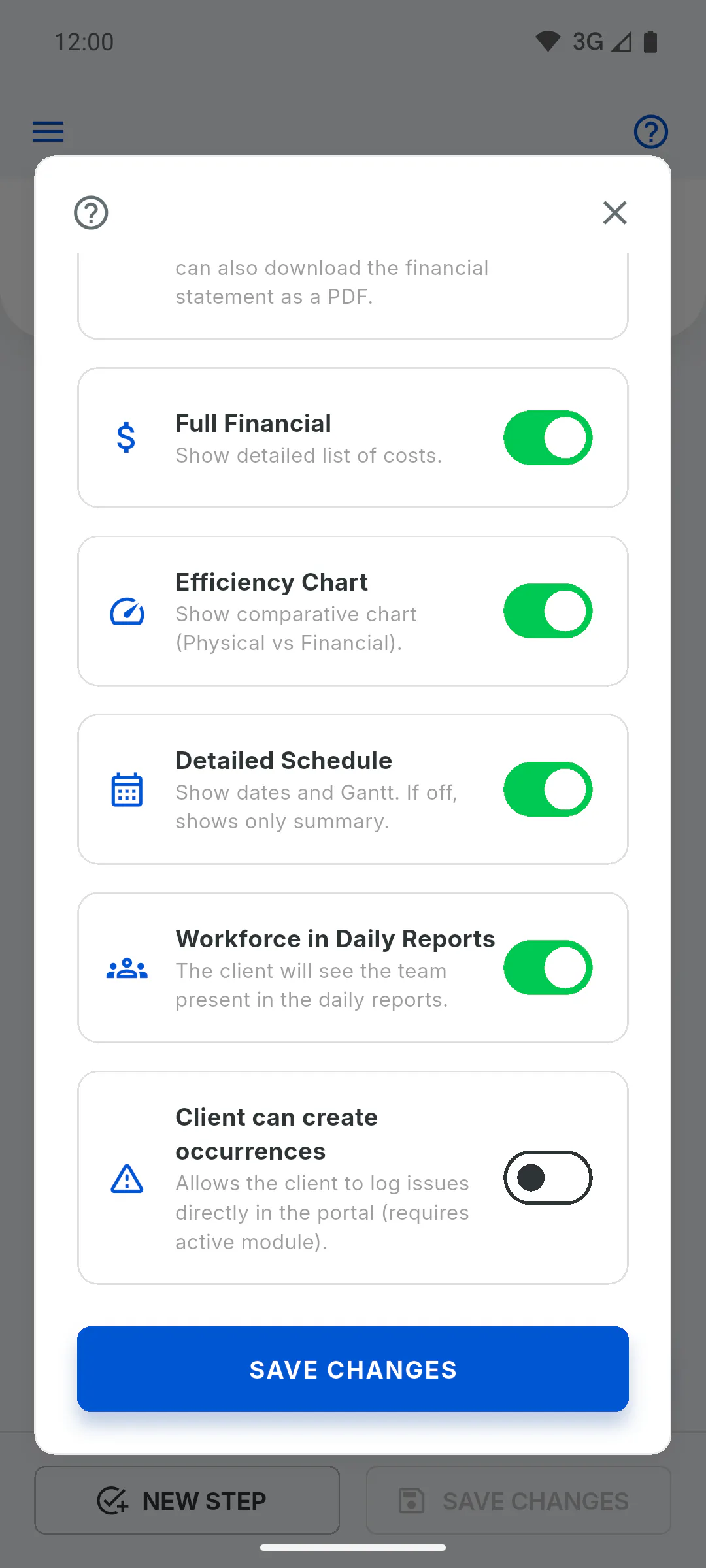
Step 2: Turn on the occurrences switch
In the client settings (the Access Granted card, Configure button), turn on Client can create occurrences and tap Save Changes. Only the project owner can do this.
Step 3: How the client logs one
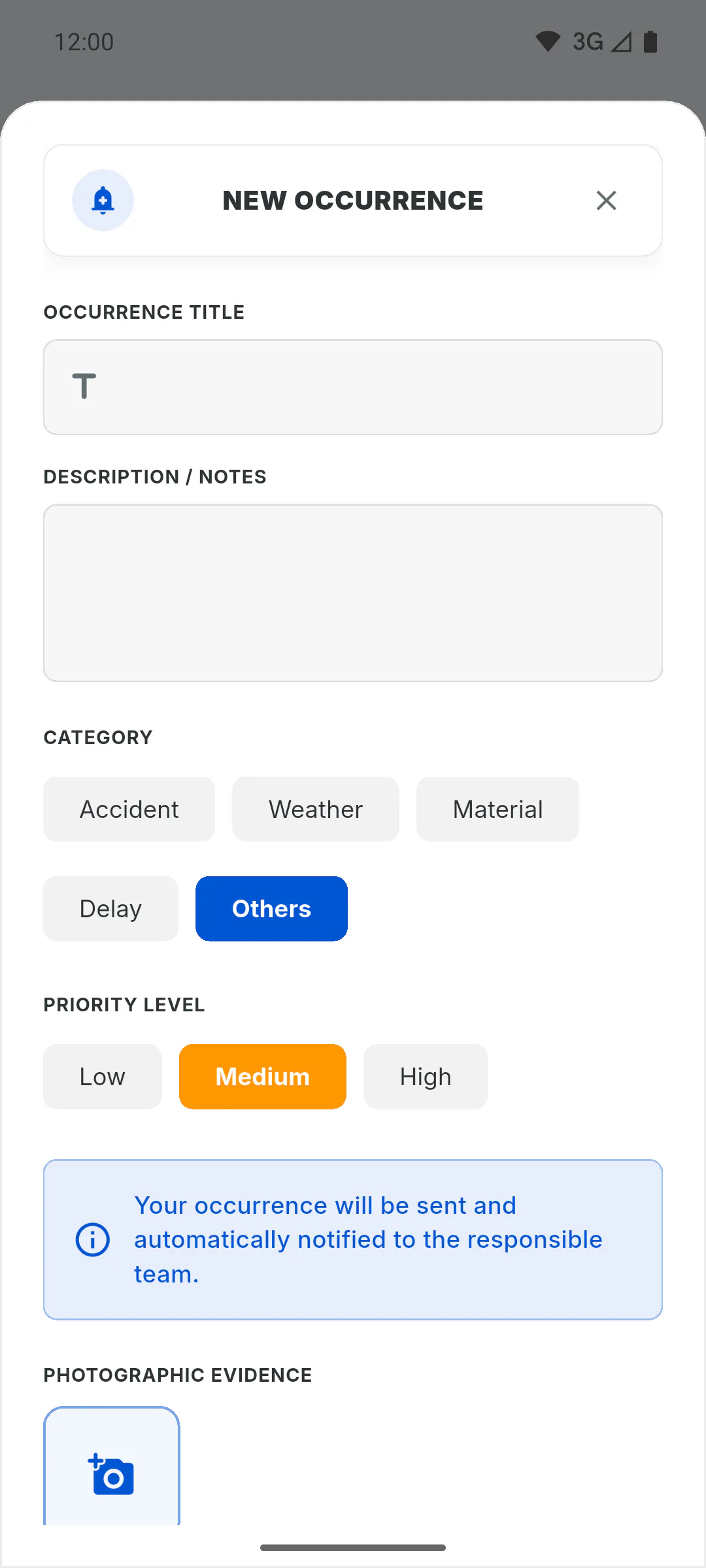
In the Portal, the client opens the menu, taps Occurrences and then New Occurrence. Their form has no choice of who to notify; instead it shows Your occurrence will be sent and automatically notified to the responsible team.
Step 4: Who gets notified
You, as project owner, and everyone on the project who isn't a client get a notification in the bell. The occurrence shows up in the project's Occurrences list like any other, and anyone on the project who isn't a client can resolve it. Once it's resolved, the client gets an Occurrence Resolved notification.
Step 5: What the client sees
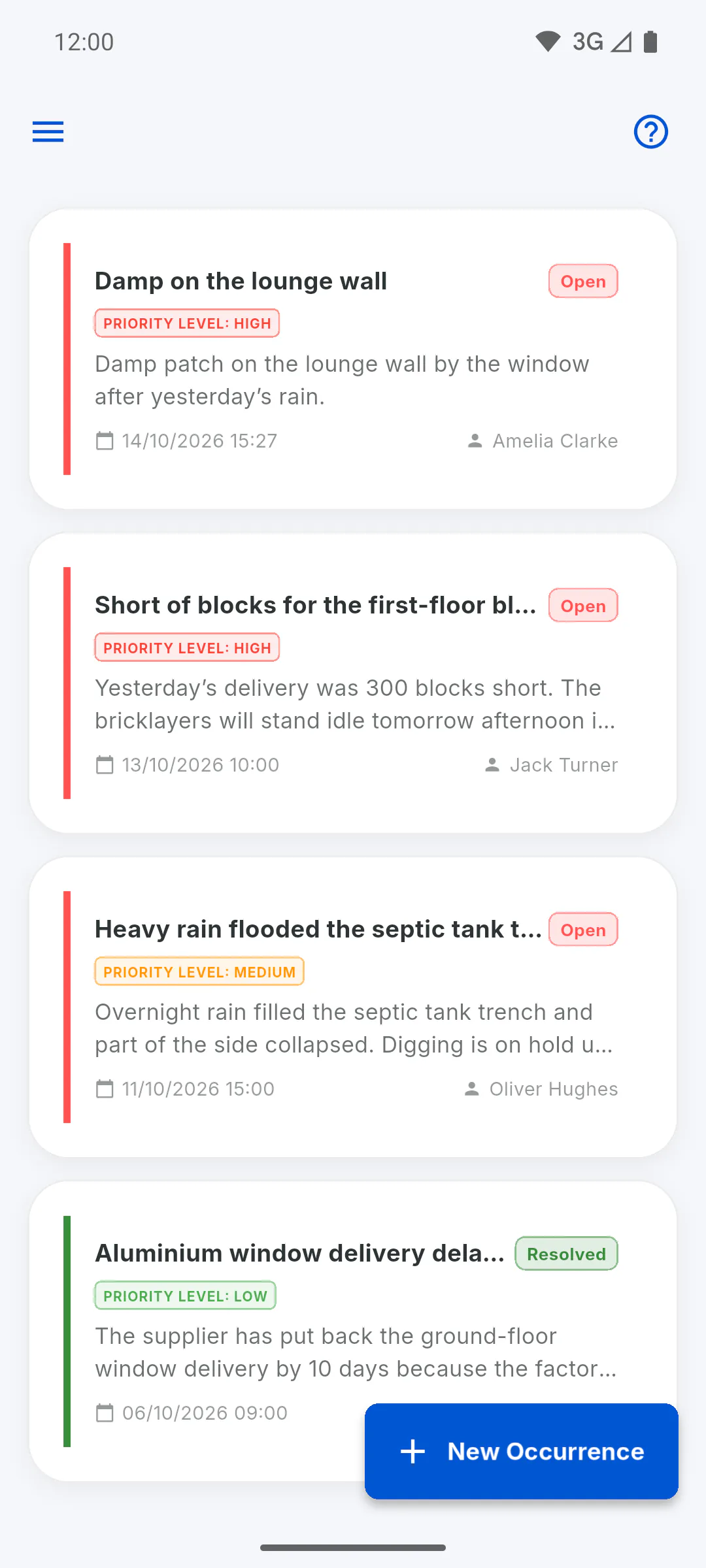
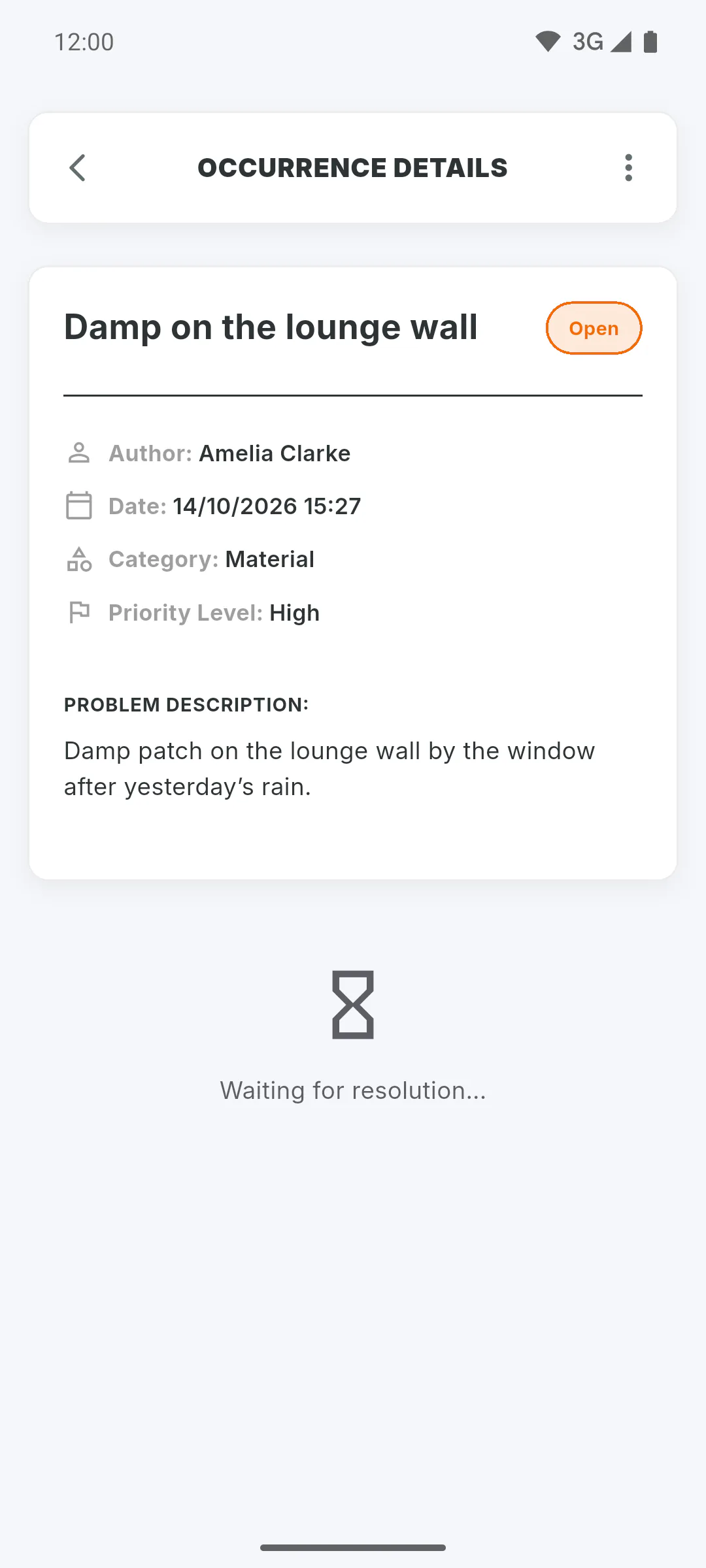
The client sees the occurrences they logged and the ones you tagged them in. While an occurrence is open, they see Waiting for resolution... and can edit the ones they logged. They can't resolve or delete occurrences.
Step 6: Without the unlock
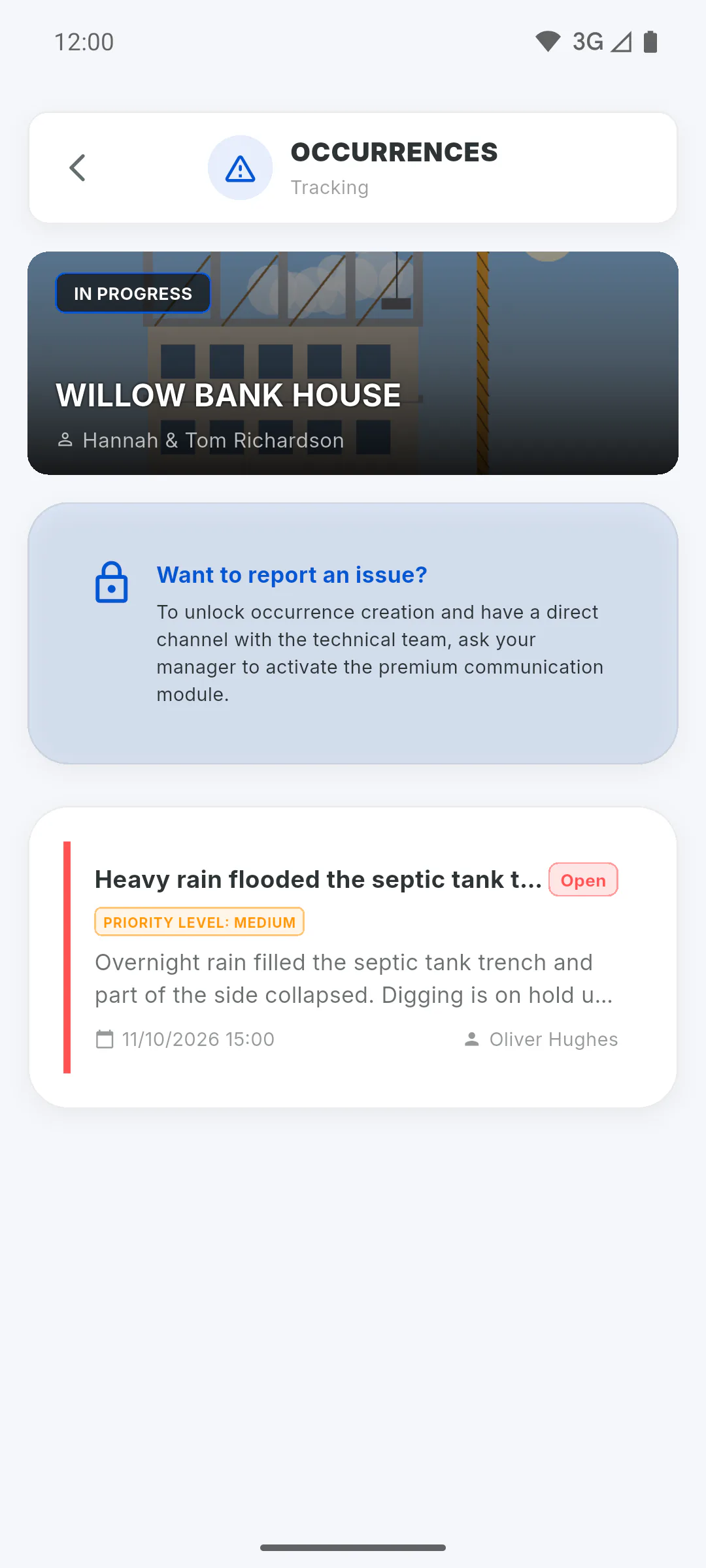
Without Client Access, or with the switch off, the client sees a Want to report an issue? card instead of the New Occurrence button, asking them to contact their manager.
How to let your client log occurrences through the portal
Open a channel for your client to report site issues from the Client Portal, and see who gets notified and how the occurrence reaches you.
For managers6 steps
Didn't find what you were looking for?
Chat with support on WhatsApp or raise a ticket in the app.