
Step 1: Open the client settings
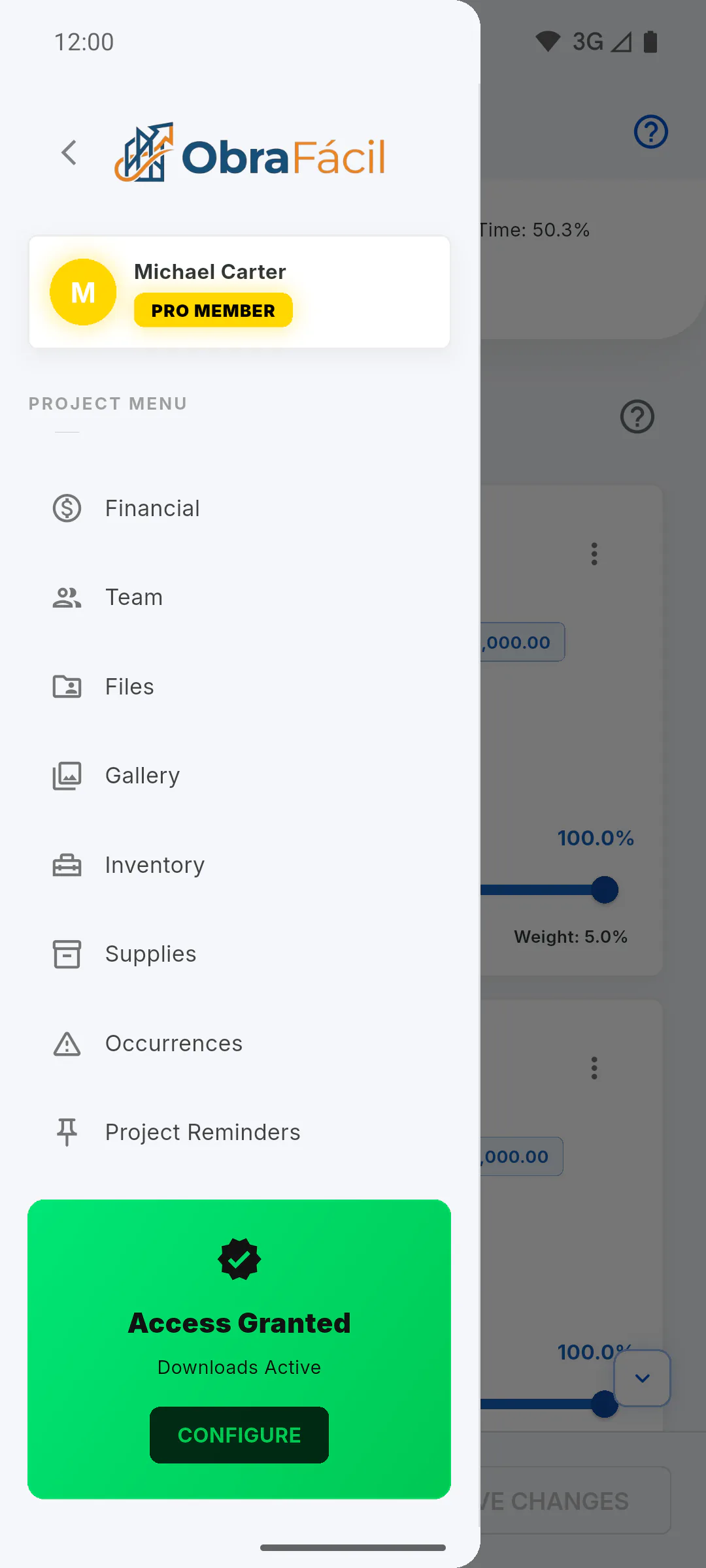
Open the project and, at the bottom of the Project Menu, tap the Access Granted card, on the Configure button (or open it from the Overview tab via the three-dot menu, under Client Access). The window shows Manage what the client can see and download. Only the project owner can open it, and only after unlocking Client Access. When Client Access is unlocked, every option starts on except Client can create occurrences.
Step 2: Photos and documents
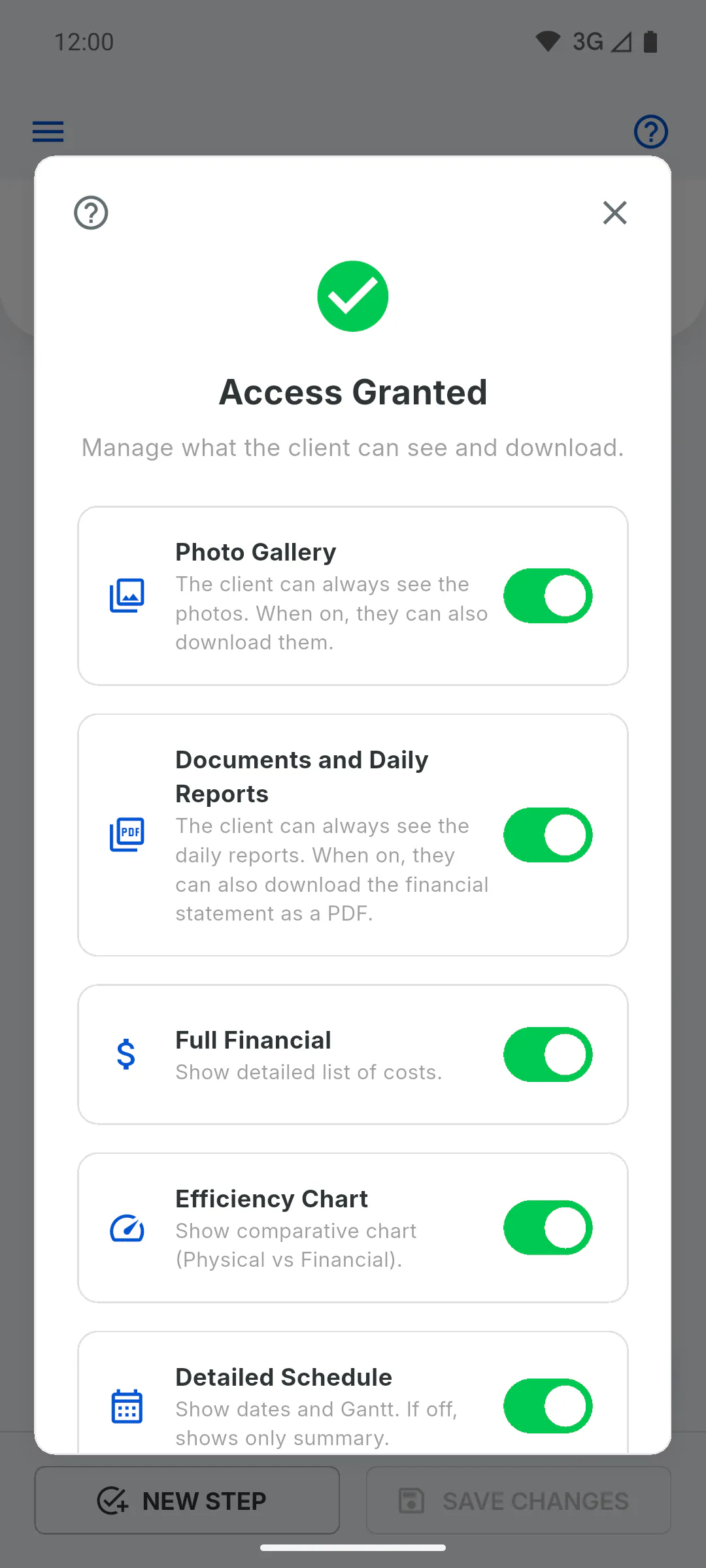
- Photo Gallery: the client can download and share photos in the Feed and Project Gallery. When off, they can only view them.
- Documents and Daily Reports: unlocks the button to export the PDF statement in the client's Financial tab. The Portal has no daily report PDF download.
Step 3: Financials
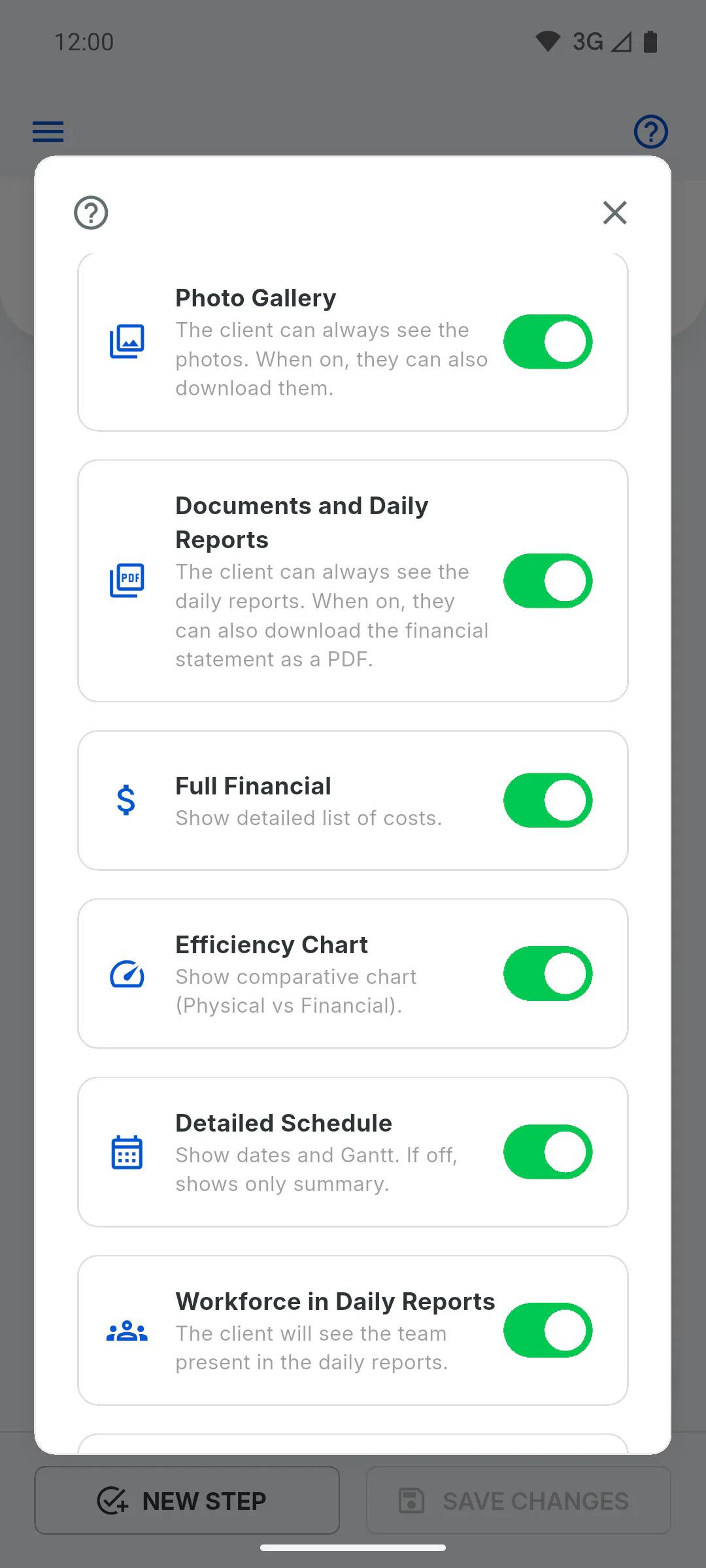
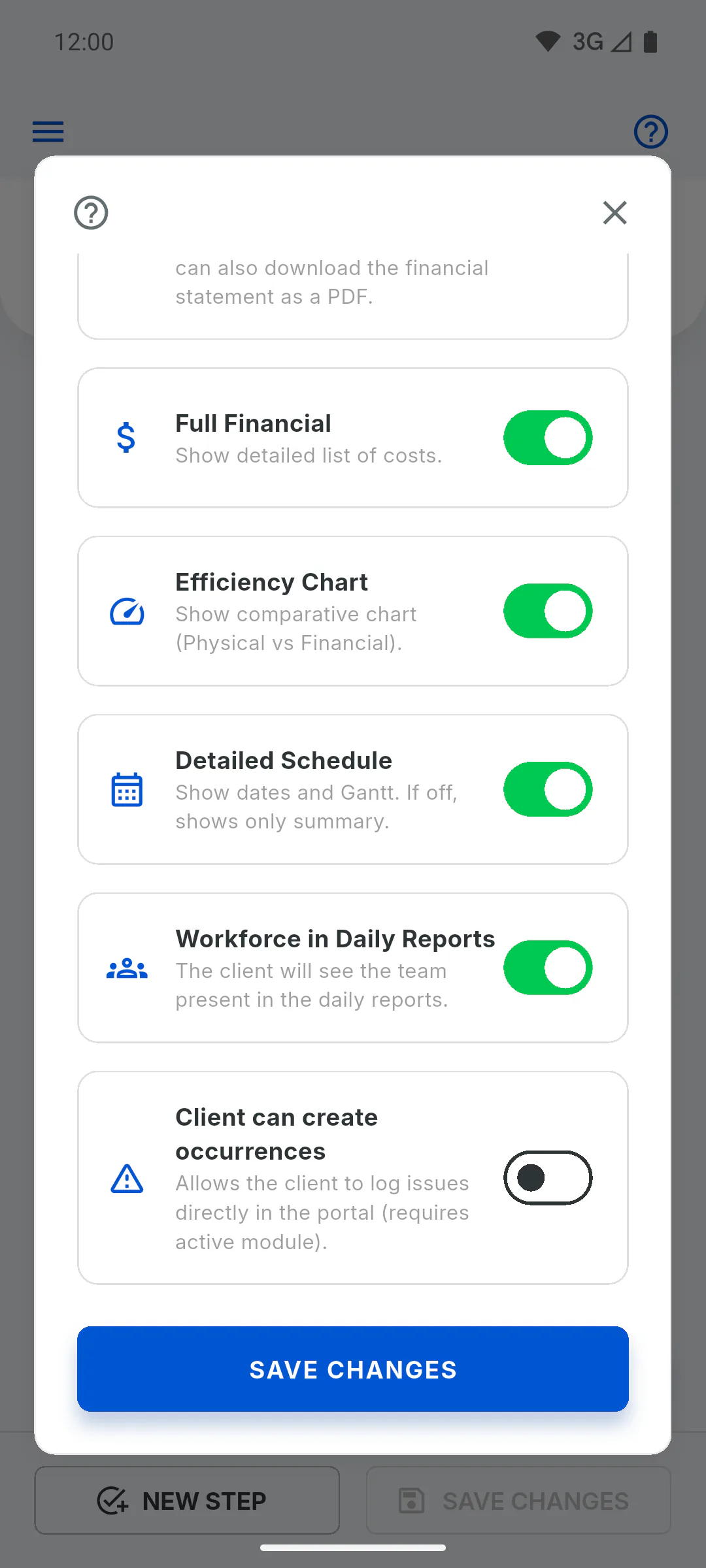
- Full Financial: the client sees the list of transactions, the filters and the indicators. When off, they only see the summary: physical progress, contract value and total paid.
- Efficiency Chart: in full financials, shows the gauges comparing physical and financial progress. When off, the client only sees costs.
- What your client sees of the financials
Step 4: Project status, schedule, crew and occurrences
- Show project status: the first toggle in the window, turned on by default. Shows the client whether the project is in progress, not started, on hold or completed; when off, the status disappears from the Client Portal cover and from My Projects.
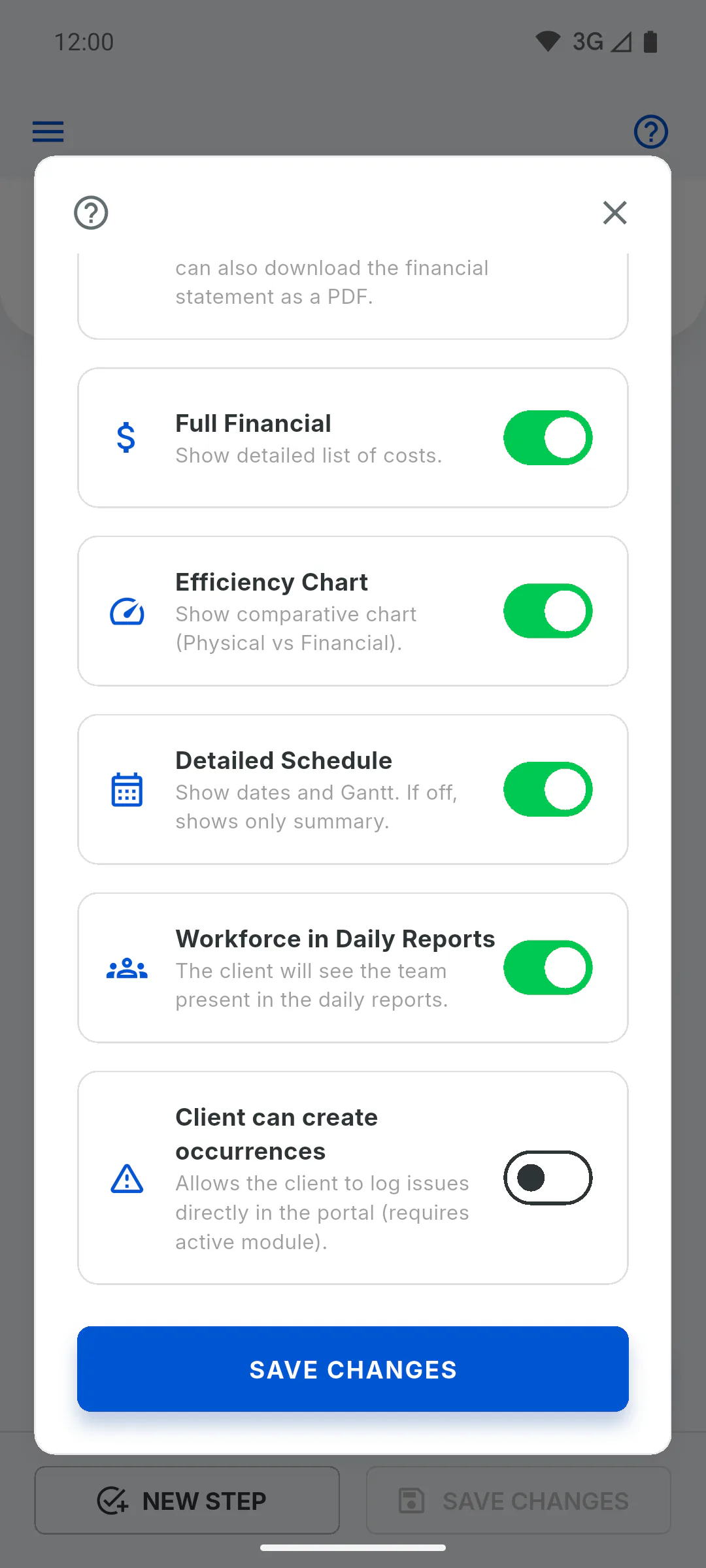
- Detailed Schedule: shows the detailed timeline of the stages. When off, the client only sees the summary.
- Workforce in Daily Reports: in the client's list of daily reports, shows how many people worked each day.
- Client can create occurrences: the client can log issues through the Portal.
- How to let the client log occurrences
Step 5: Save
Tap Save Changes. You'll see Permissions updated successfully! and the client's Portal follows your new choices right away. If you close the window with the X, anything not saved is discarded.
How to choose what your client can see and download
Turn on or off, project by project, the project status on the cover, photo downloads, the statement, full financials, the detailed schedule, the crew in daily reports and client occurrences.
For managers5 steps
Didn't find what you were looking for?
Chat with support on WhatsApp or open a ticket right in the app.