
Step 1: How the upload works
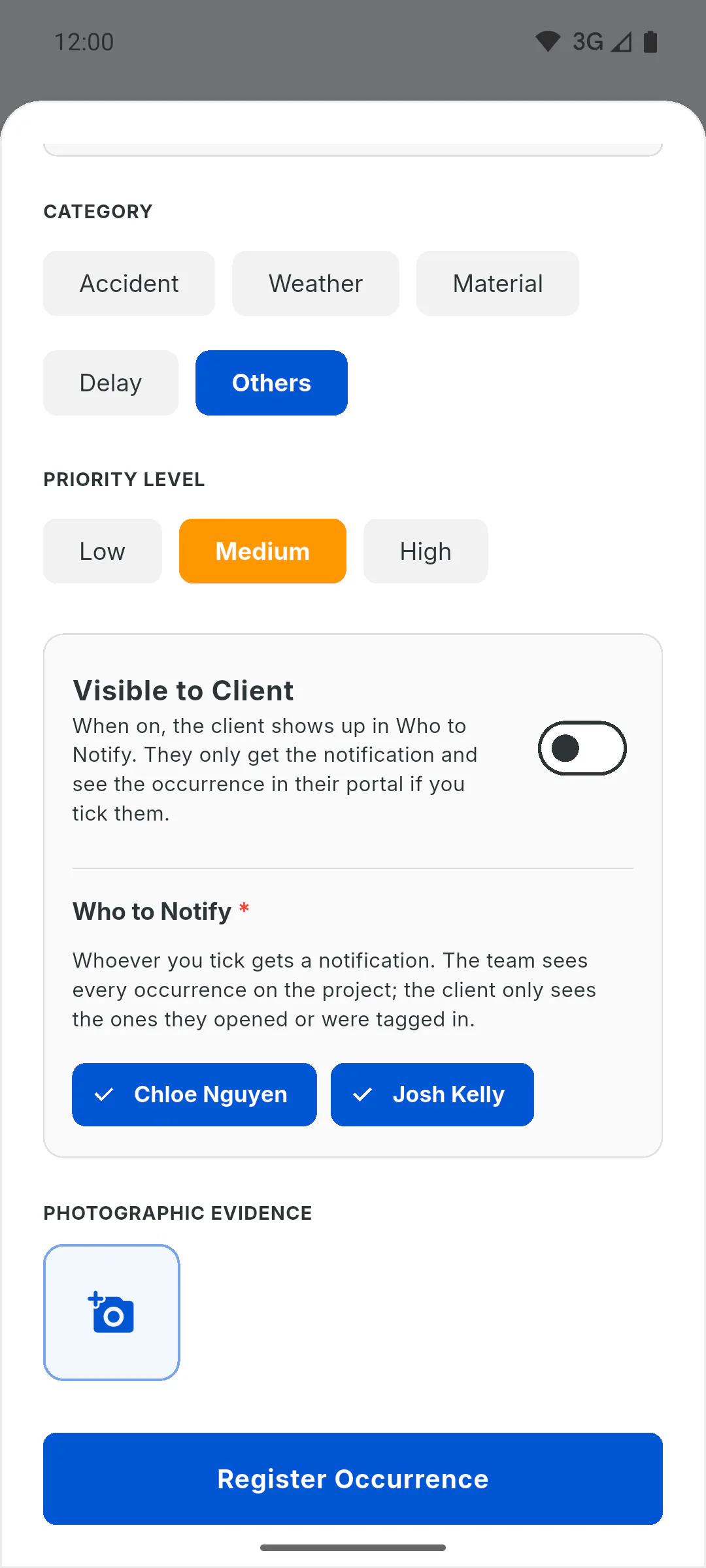
When you tap Register Occurrence, the form closes right away with the message Registration started. The photos upload one by one, and the occurrence is only created once they have all been sent. With lots of photos or a weak connection, this can take a while. Keep the app open until it appears in the list.
Step 2: No internet
With photos and no internet, the photos don't upload and the occurrence may not be registered, with no error message. Without photos, it shows on your device and is sent to everyone else when you're back online; notifications to the people you tagged also go out only then. To register one with photos, wait until you're online.
Step 3: Storage full
Photos count towards the storage of the account that uploads them. If you're out of space, the photos don't upload and the occurrence isn't registered, again with no error message. Free up space or register it without photos: How much storage do I have.
Step 4: Check the project and the list
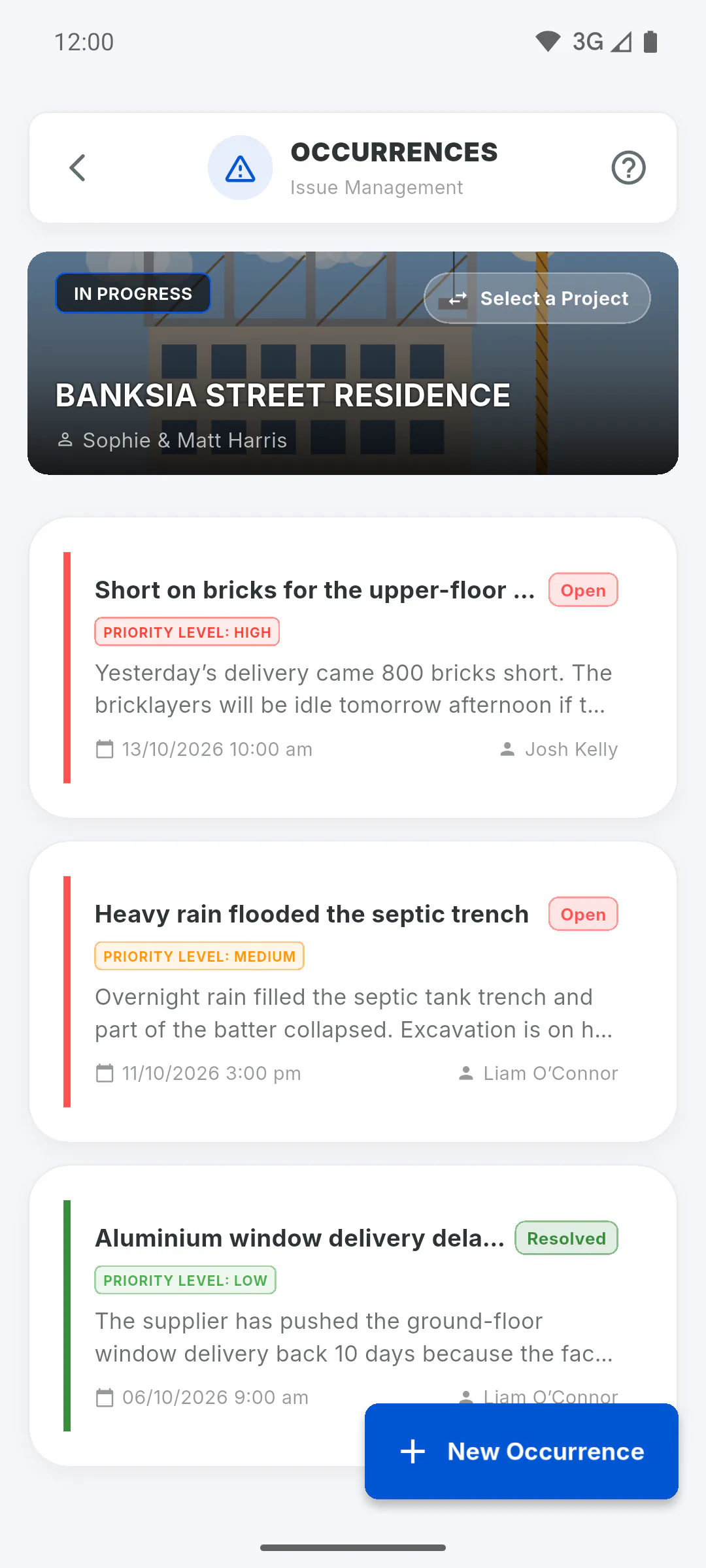
Make sure you're on the right project: in the dashboard shortcut, the project name is at the top, with the Select a Project button to switch. The list shows the most recent first, 10 at a time: scroll down to load more.
Step 5: Still not there?
Register it again while online. If it's the client who can't see the occurrence, remember they only see the ones they opened and the ones they were tagged in: Who gets notified and who can see each occurrence.
My occurrence didn't show up: internet, uploads and storage
An occurrence only appears in the list once its photos have been uploaded. See what stops it from being registered and how to check.
For managers and team members5 steps
Didn't find what you were looking for?
Chat with support on WhatsApp or raise a ticket in the app.