
Step 1: Add your crew
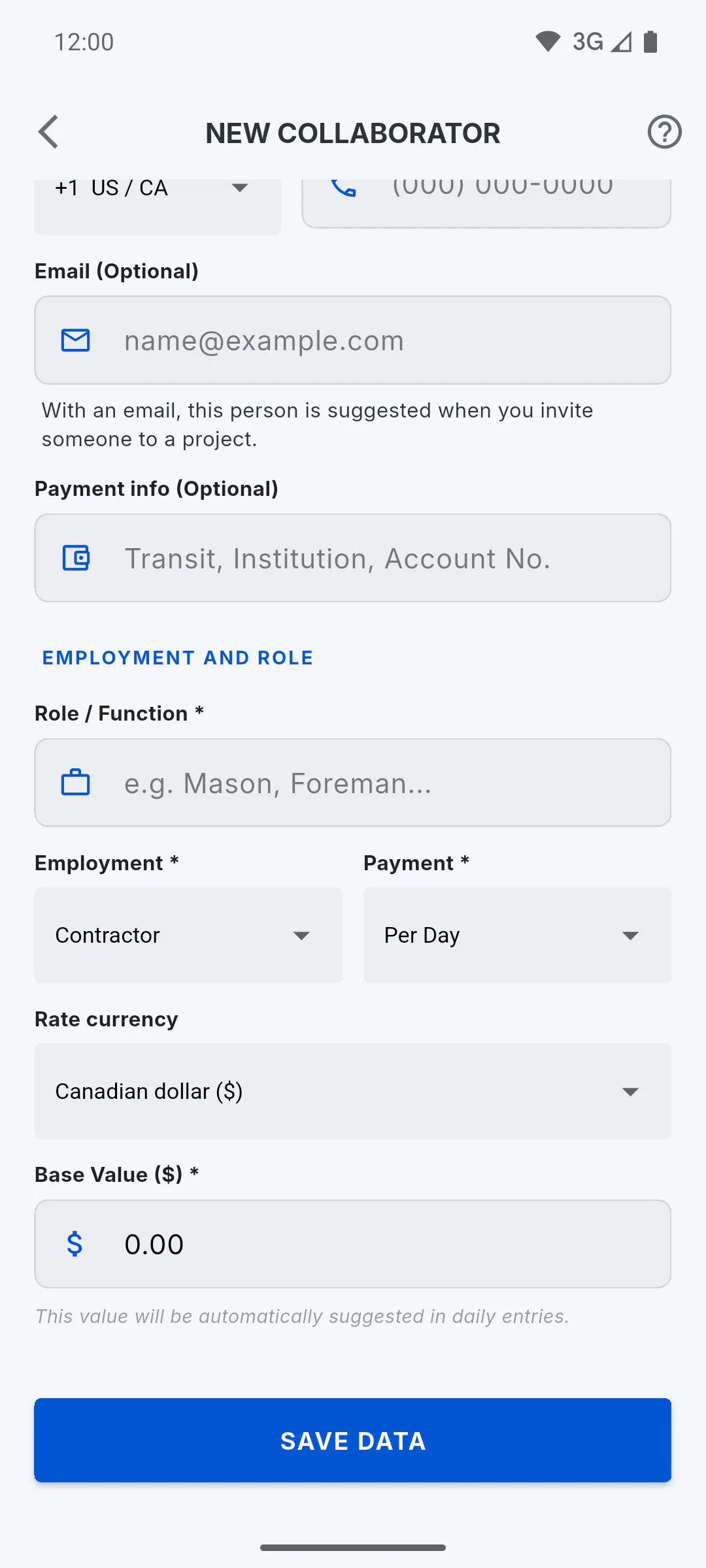
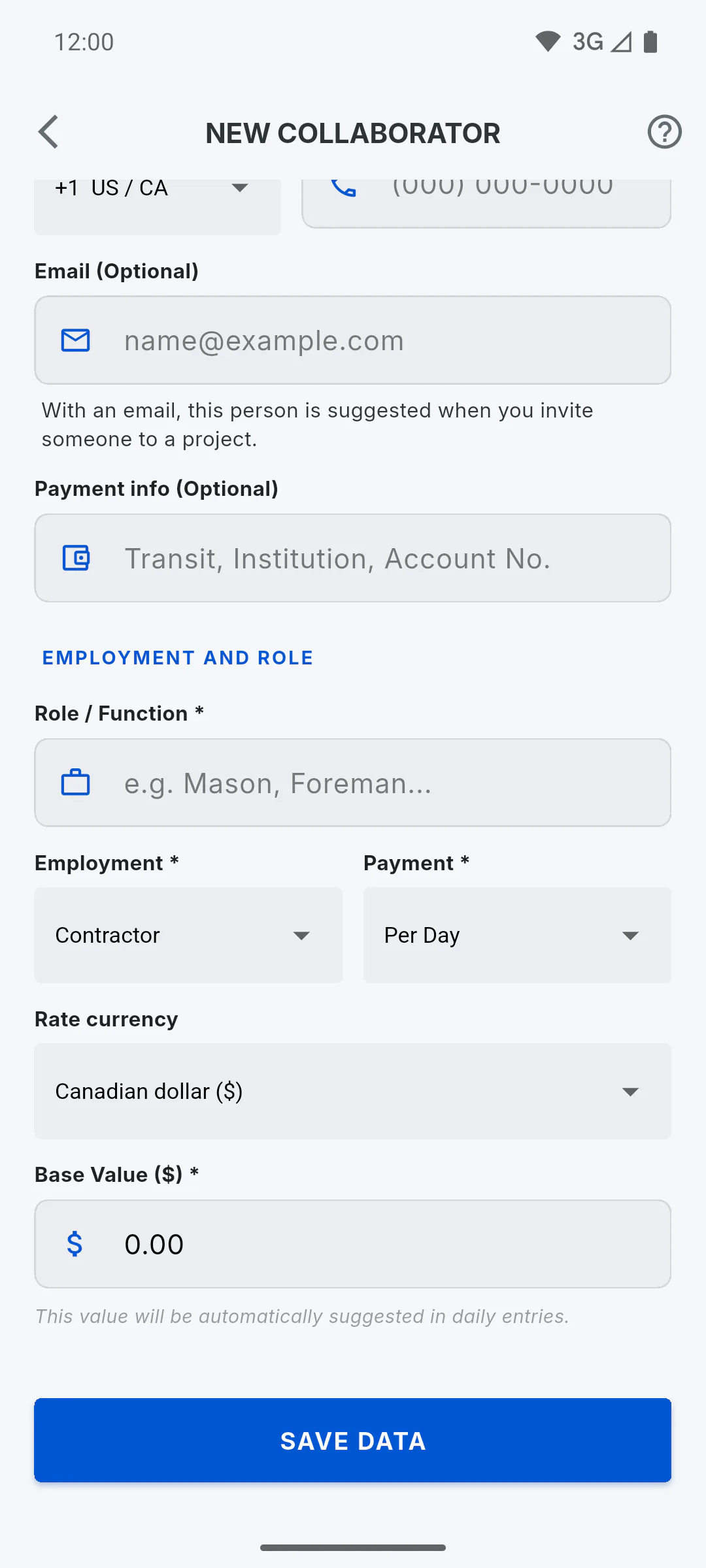
In the side menu, tap My Team and add each person just once. For payroll, what matters is Payment (Per Day, Monthly, By Task or Per Hour), the Rate currency and the Base Value.
Step 2: Use the project currency
Payroll doesn't convert currencies: anyone whose rate is in a different currency is left out of that project's total and pay slips, and a warning shows at the top of the payroll. Make sure the Rate currency matches the project's.
- Left out of payroll: rates in another currency
- Monthly staff on several projects: How to split a salary across projects
Step 3: Mark attendance in each report
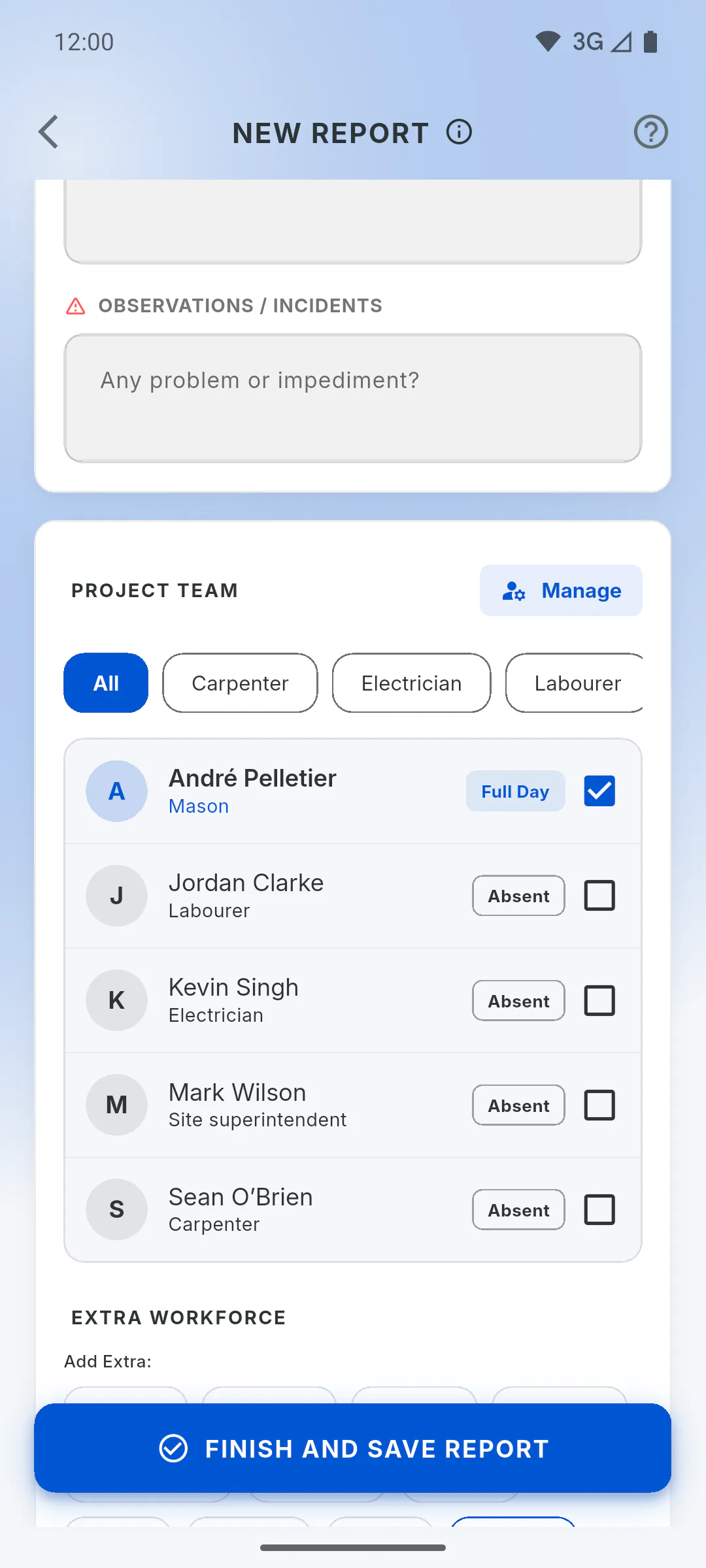
Payroll is built from daily reports. In each report, under Project Team, tap the name of each person who worked: they're marked Full Day. Tap Full Day to switch to Half Day, or tap Absent for anyone who didn't show. For hourly workers, tap the hours to adjust them.
- A day with no report doesn't count as an absence.
- The crew can't be changed once the report is saved: How to record crew attendance
Step 4: Log advances
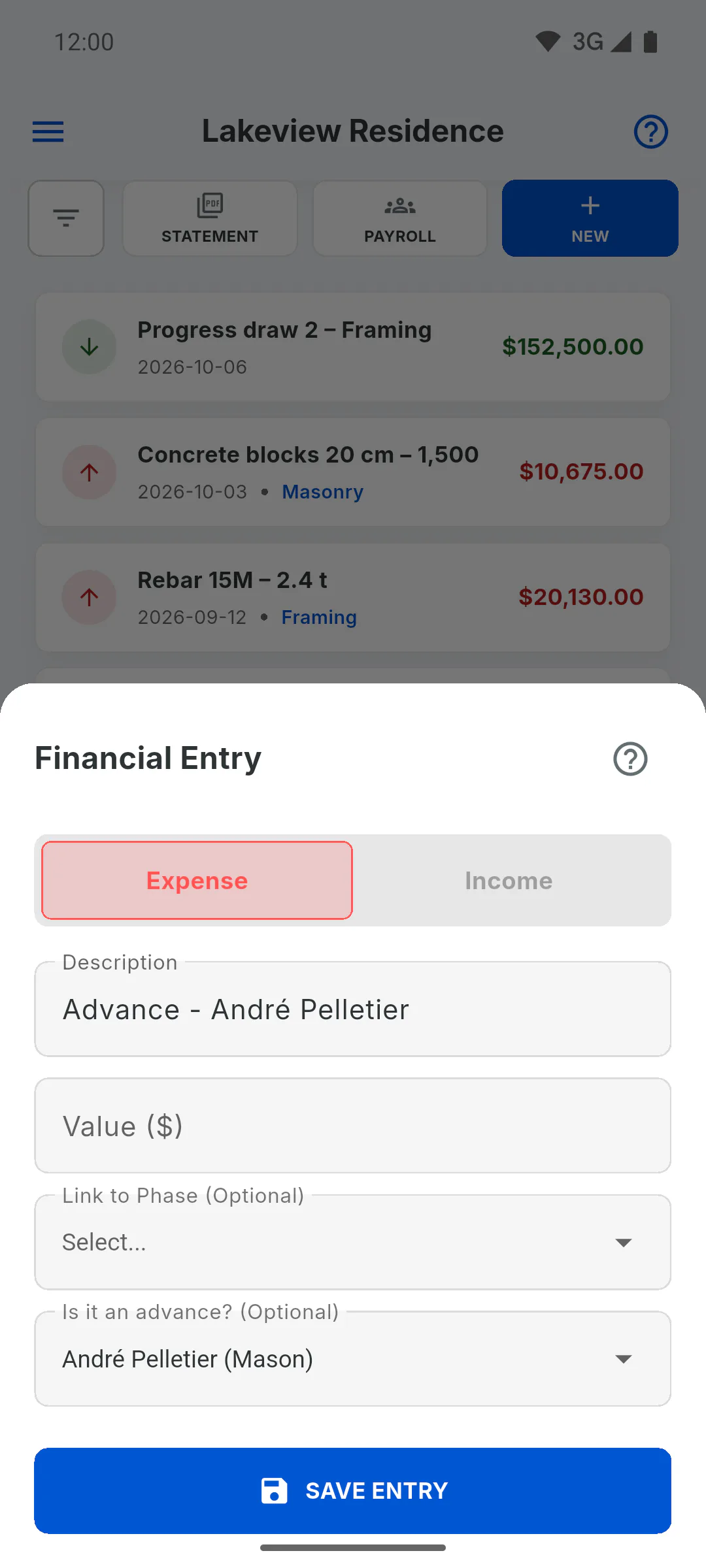
An advance paid during the period is an expense in the project's Financial area: tap New, choose Expense and, under Is it an advance? (Optional), pick the team member. Payroll adds up these advances for the period. Only the project owner can save entries in Financial.
Step 5: Open the period's payroll
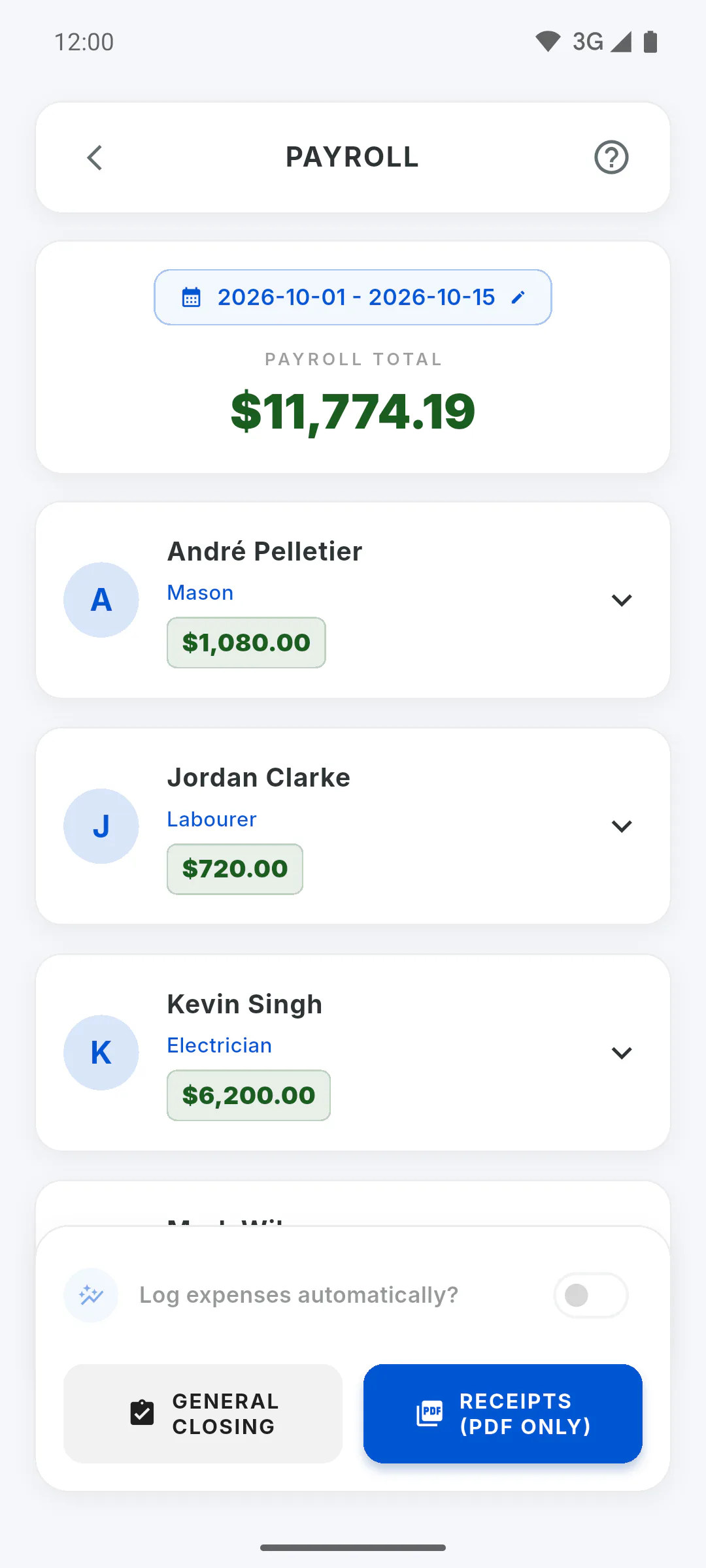
In the project's Financial area, tap Payroll. The period runs from the 1st of the month to today; tap it to pick another. You'll see the Payroll Total and a card for each team member marked (present or absent) in that period's reports, plus monthly staff with a fixed share in this project.
Step 6: Check, deduct advances and add bonuses
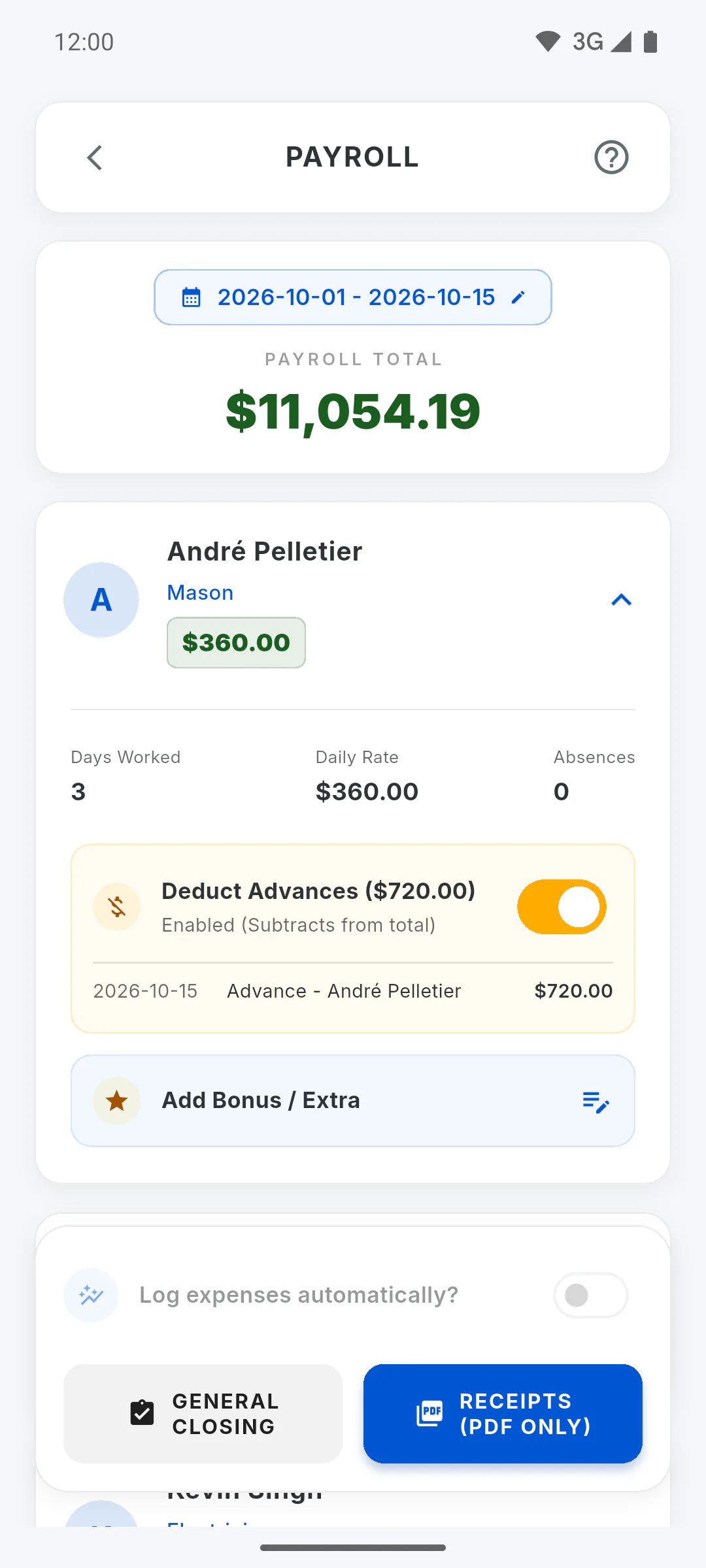
Open each team member's card to see the calculation: days, hours or salary, and absences. Use Deduct Advances to take advances off the total and Add Bonus / Extra to add an amount with a reason.
Step 7: Generate pay slips
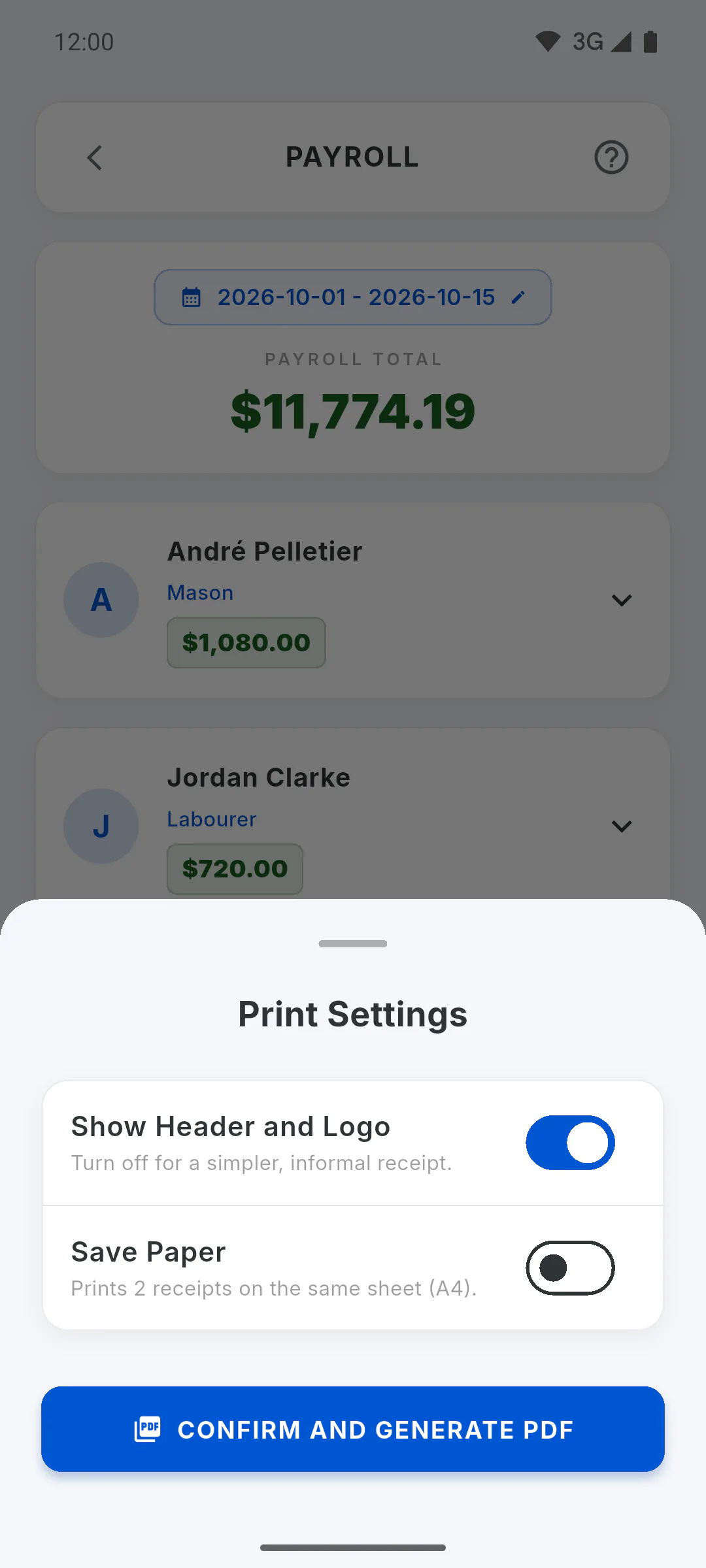
On the bottom bar, tap Receipts (PDF Only), choose the print options and tap Confirm and Generate PDF. Only a bonus marked Log bonus as expense? becomes an expense, and only with Log expenses automatically? on; day rates and salaries aren't logged automatically.
Step 8: Close out several projects at once
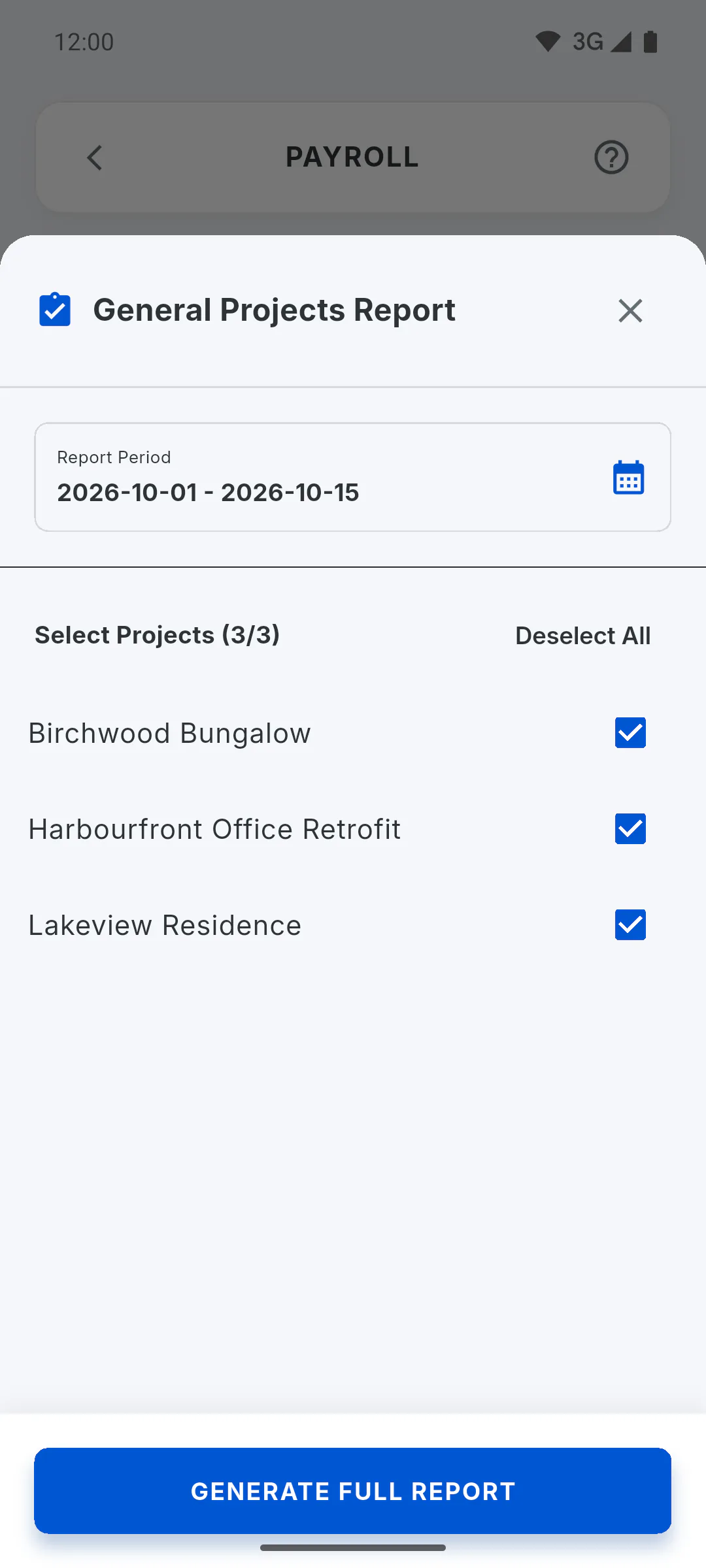
To close the period for several projects together, tap General Closing on the payroll screen, pick the period and the projects, and tap Generate Full Report. Each project is calculated in its own currency.
From crew to payroll: team members, daily reports and payroll
How payroll comes out of day-to-day work: add your crew, mark attendance in daily reports, log advances and generate the period's pay slips.
For managers8 steps
Didn't find what you were looking for?
Chat with support on WhatsApp or raise a ticket in the app.