
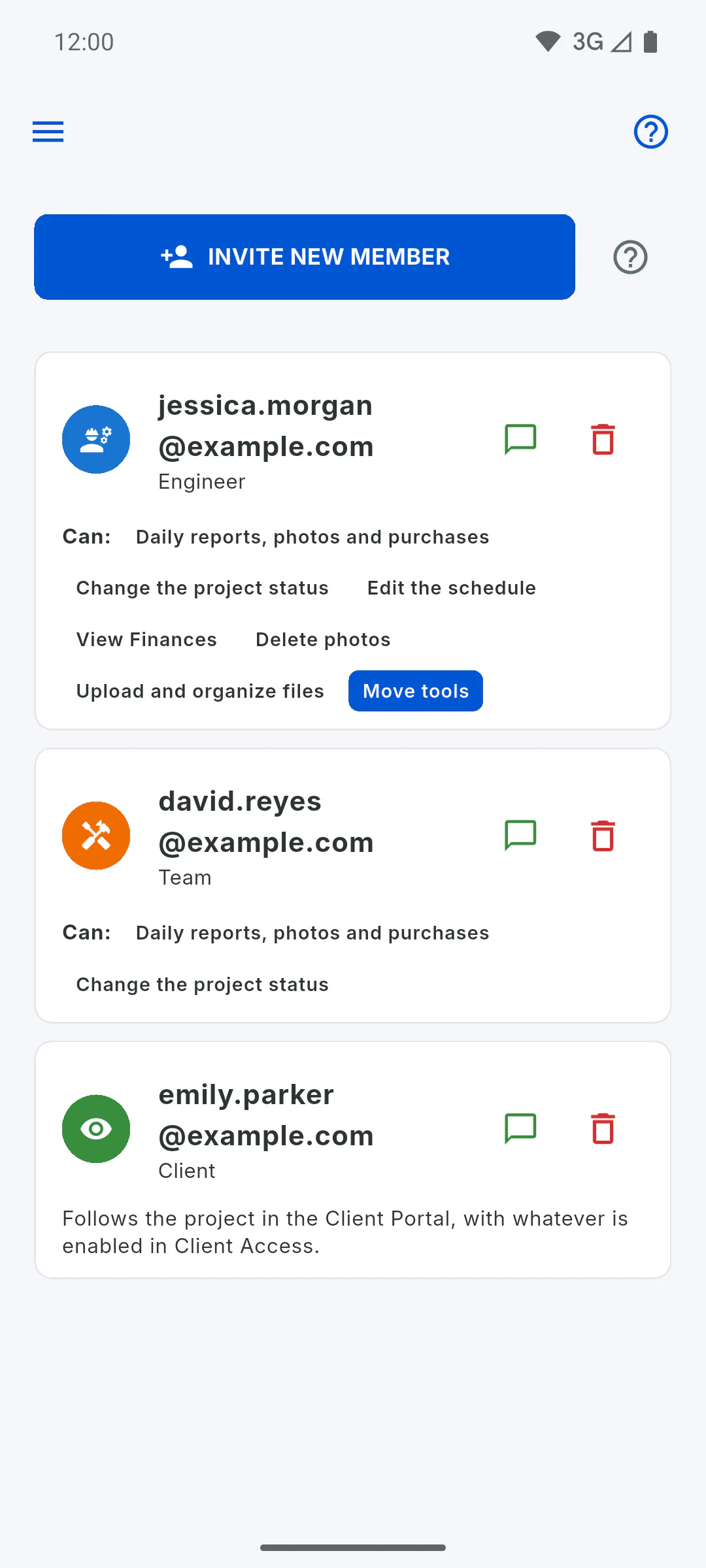
Step 1: Make sure the client is invited
The client has to be invited to the project with the Client role: How to invite someone to your project.
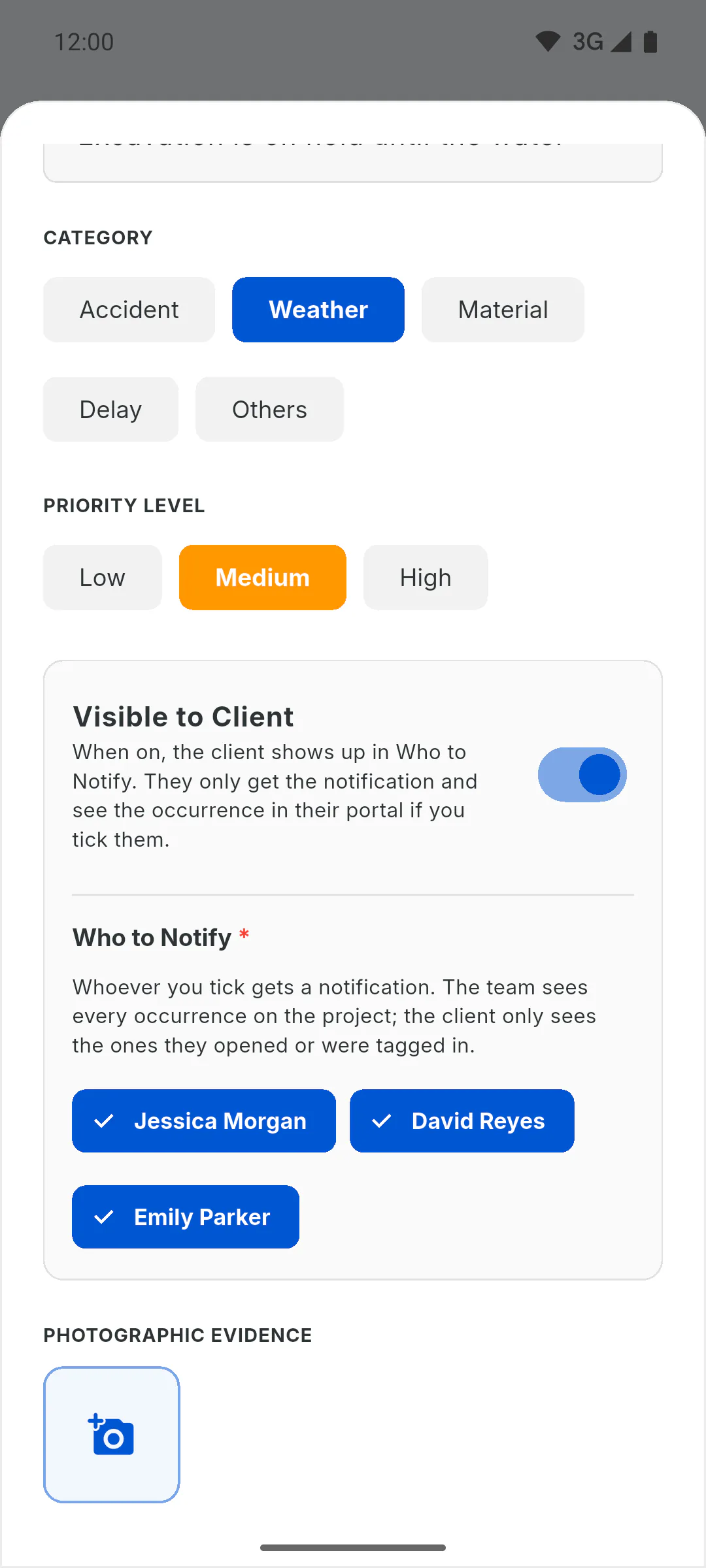
Step 2: Turn on Visible to Client
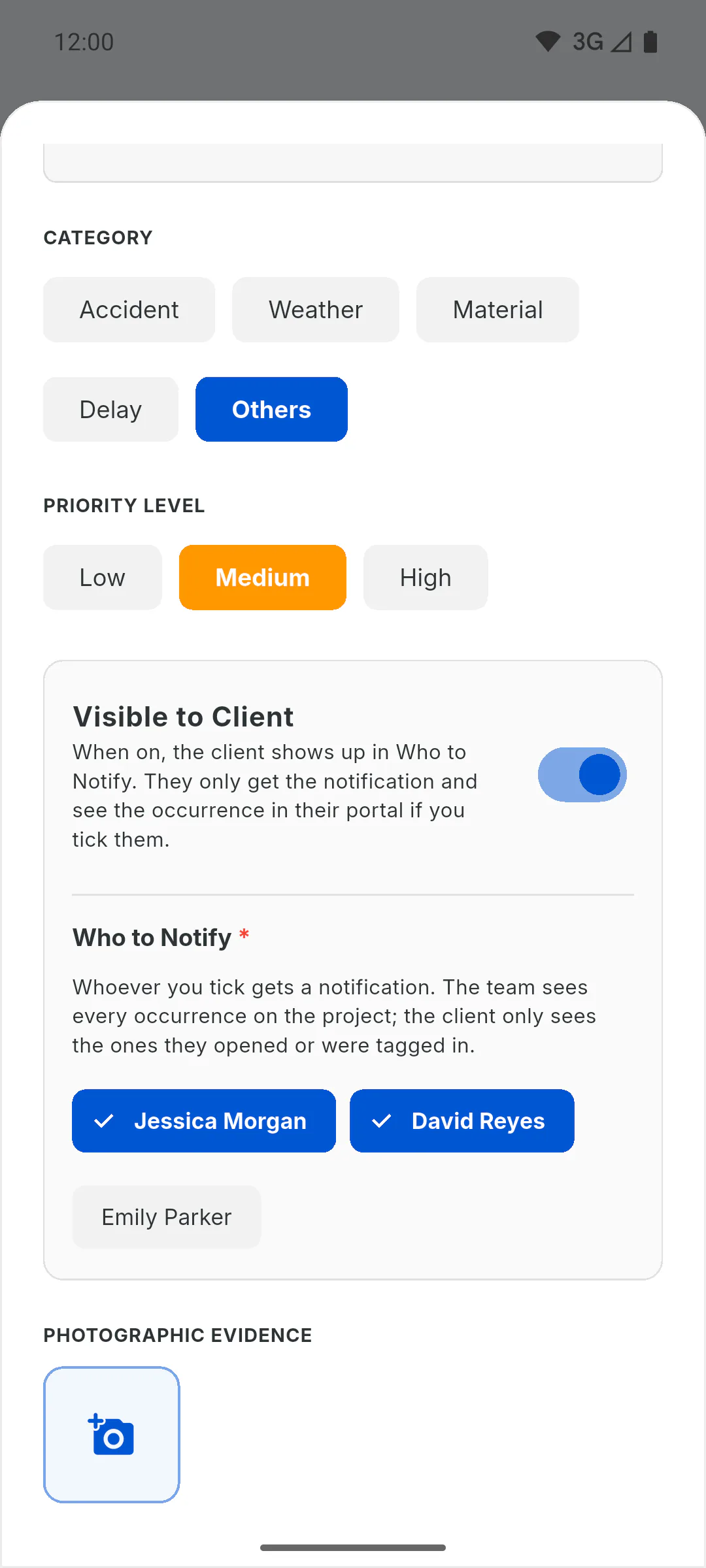
When you register the occurrence, or when you edit it, turn on Visible to Client: How to register an occurrence. This switch is for the project owner and the engineer; for team members it's locked. Turning it on doesn't show anything to the client by itself: it only makes their name appear under Who to Notify.
Step 3: Tag the client
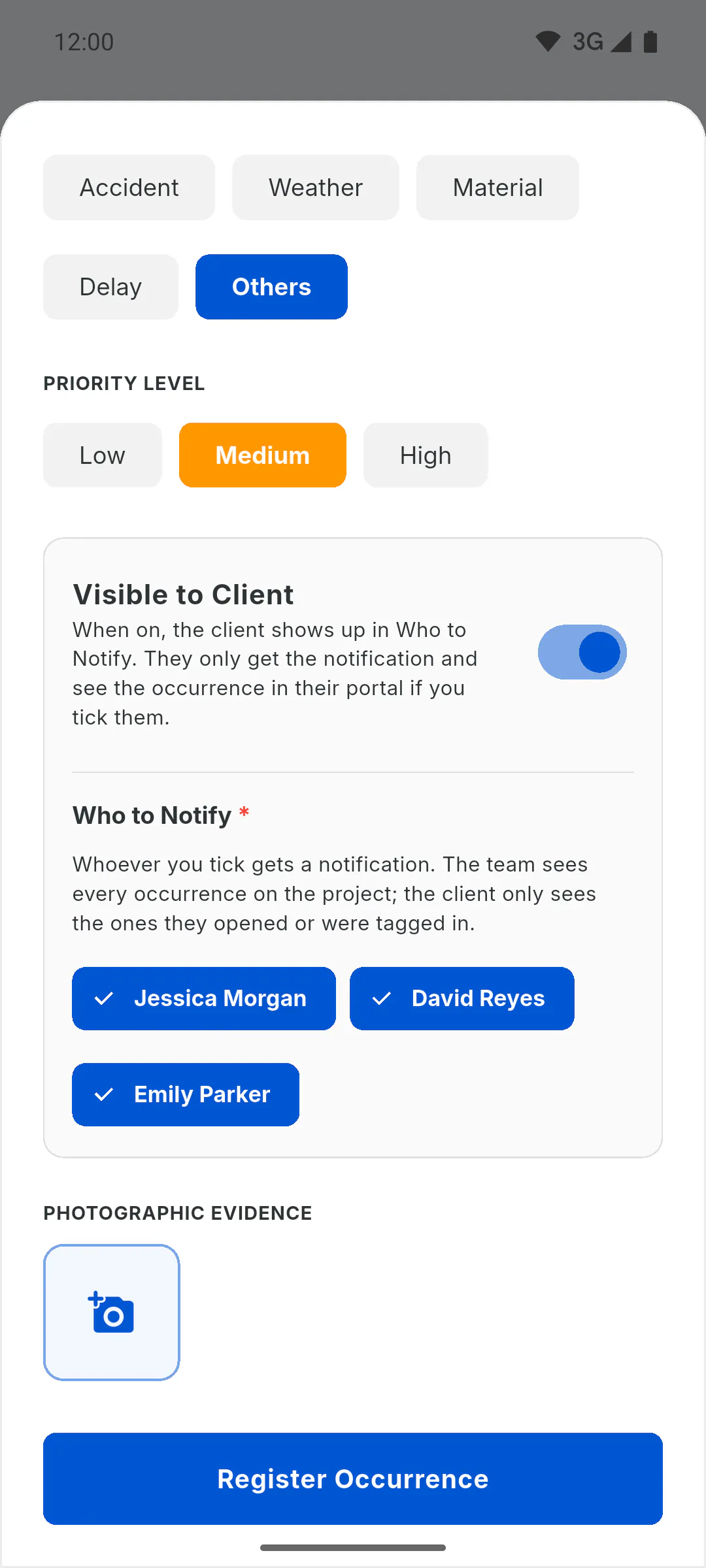
Under Who to Notify, tap the client's name to check it: it isn't checked by default. The name may show as the first part of their email address. This tag is what makes the occurrence show up for the client. If they've already created their account, they also get a notification.
Step 4: Save and check
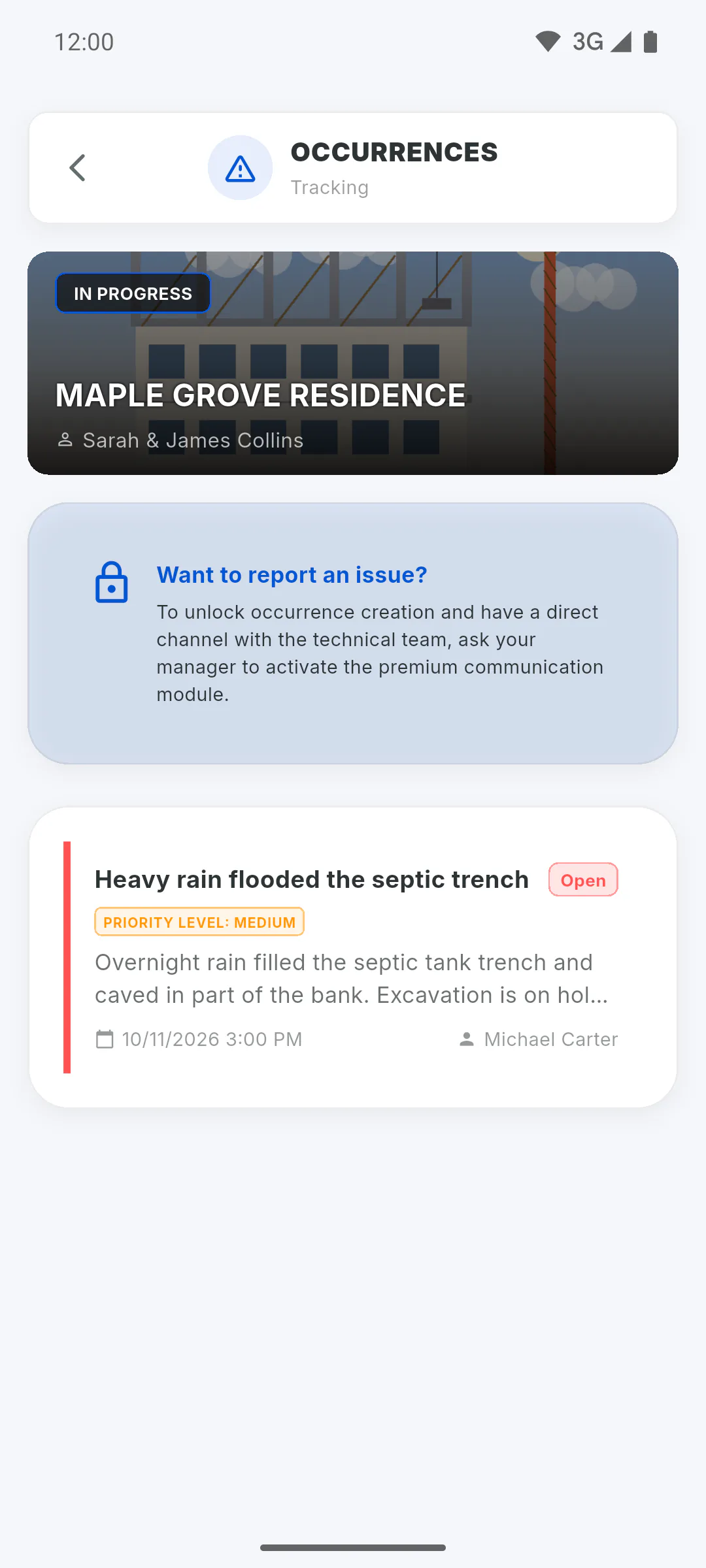
Tap Register Occurrence, or Save Changes when editing. The client finds the occurrence in the Client Portal, under the Occurrences menu, and can follow it until it's resolved. Clients can't resolve or delete occurrences.
Step 5: To hide it again
Edit the occurrence and turn off Visible to Client: the client is removed from the tagged list and no longer sees the occurrence. Only the person who registered it and the project owner can edit it, and only while it is open: How to edit or delete an occurrence.
How to show an occurrence to the client
For the client to see an occurrence in the Client Portal, turn on Visible to Client and tag the client under Who to Notify. The switch alone is not enough.
For managers5 steps
Didn't find what you were looking for?
Chat with support on WhatsApp or open a ticket right in the app.