
Step 1: What gets deleted
Once the period is over, the projects you own are deleted, with their photos, daily reports, files and reports, along with your team and your inventory. You're also removed from other people's projects you were invited to. None of this can be recovered and there's no refund. If you only want to stop paying, cancel your subscription instead: How to manage or cancel your subscription.
Step 2: What is kept
Some records are kept even after deletion, for the period required by law:
- payments (plan, dates, amounts and purchase identifiers): for the period required by tax law;
- acceptance of the Terms and the Policy: for 5 years;
- access logs: for 6 months, as required by law;
- anti-fraud codes from the bonus programs: for 5 years, not linked to the account.
ObraFácil never keeps your card number. The details are in section 8 of the Privacy Policy.
Step 3: Subscribed? Cancel first
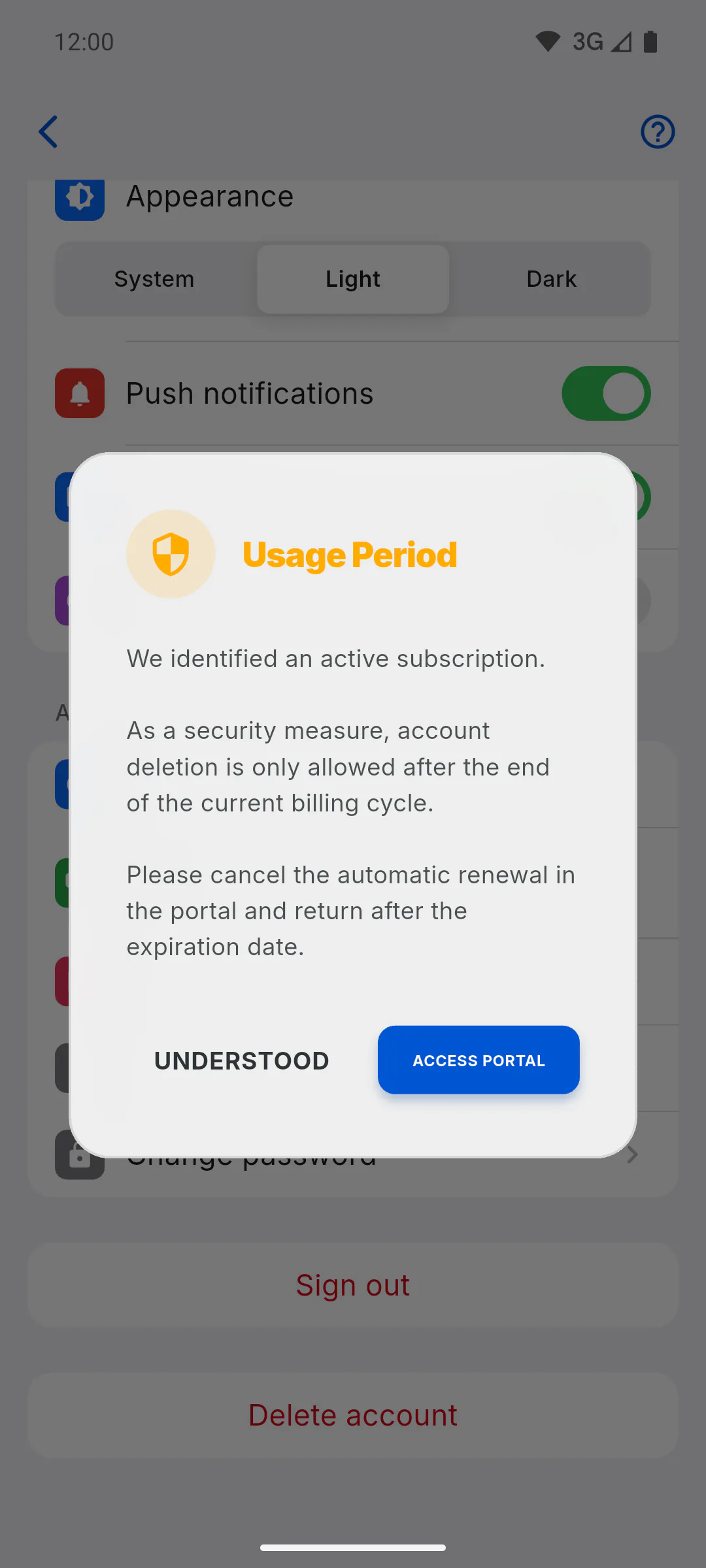
If you have paid PRO or storage expansion that's still active, the app shows Usage Period and won't let you continue: deletion is only allowed after the period you've paid for ends. Tap Access Portal to cancel the renewal and come back after it expires.
Step 4: Schedule the deletion
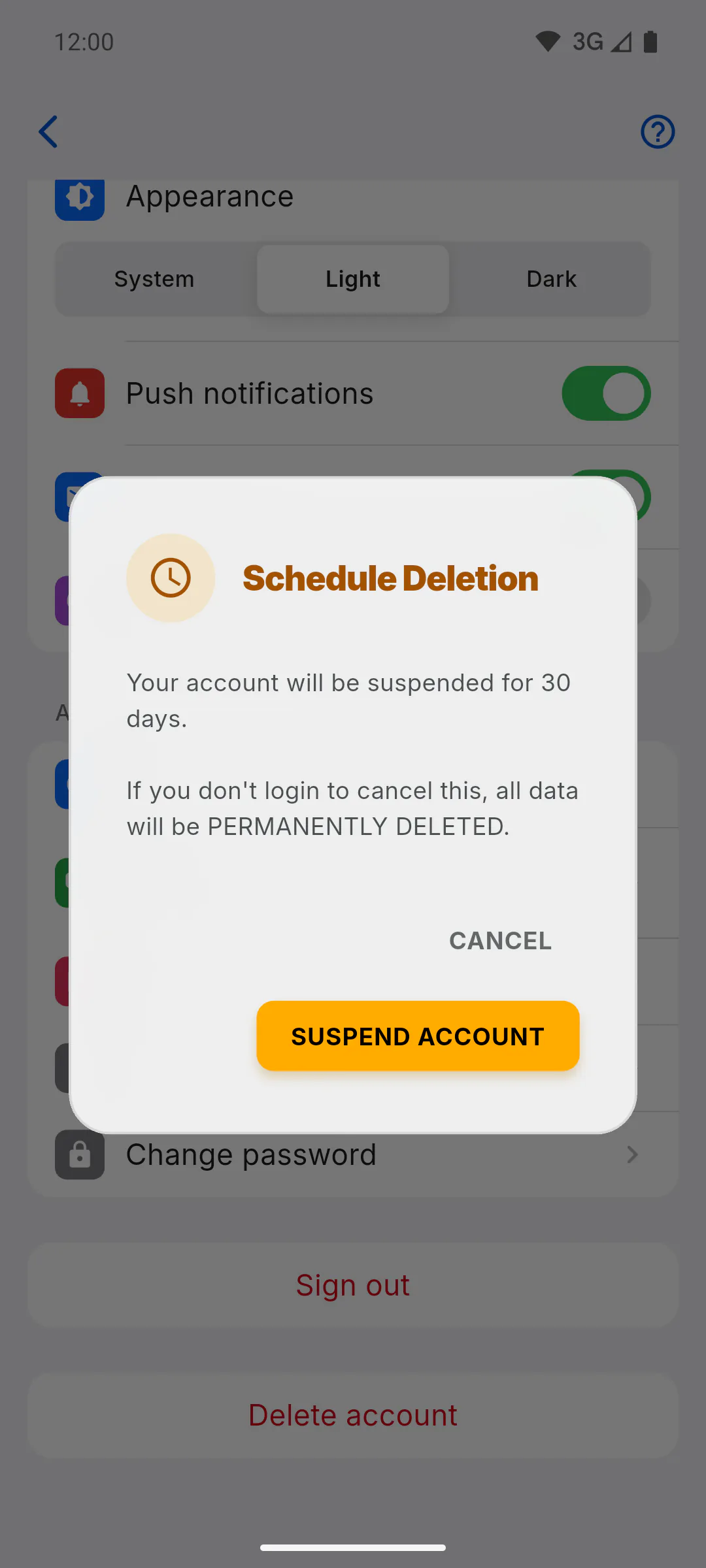
While online, open Profile, scroll to the bottom and tap Delete account. In the Schedule Deletion window, read the warning and tap Suspend Account. To back out, tap Cancel.
Step 5: The 30-day period
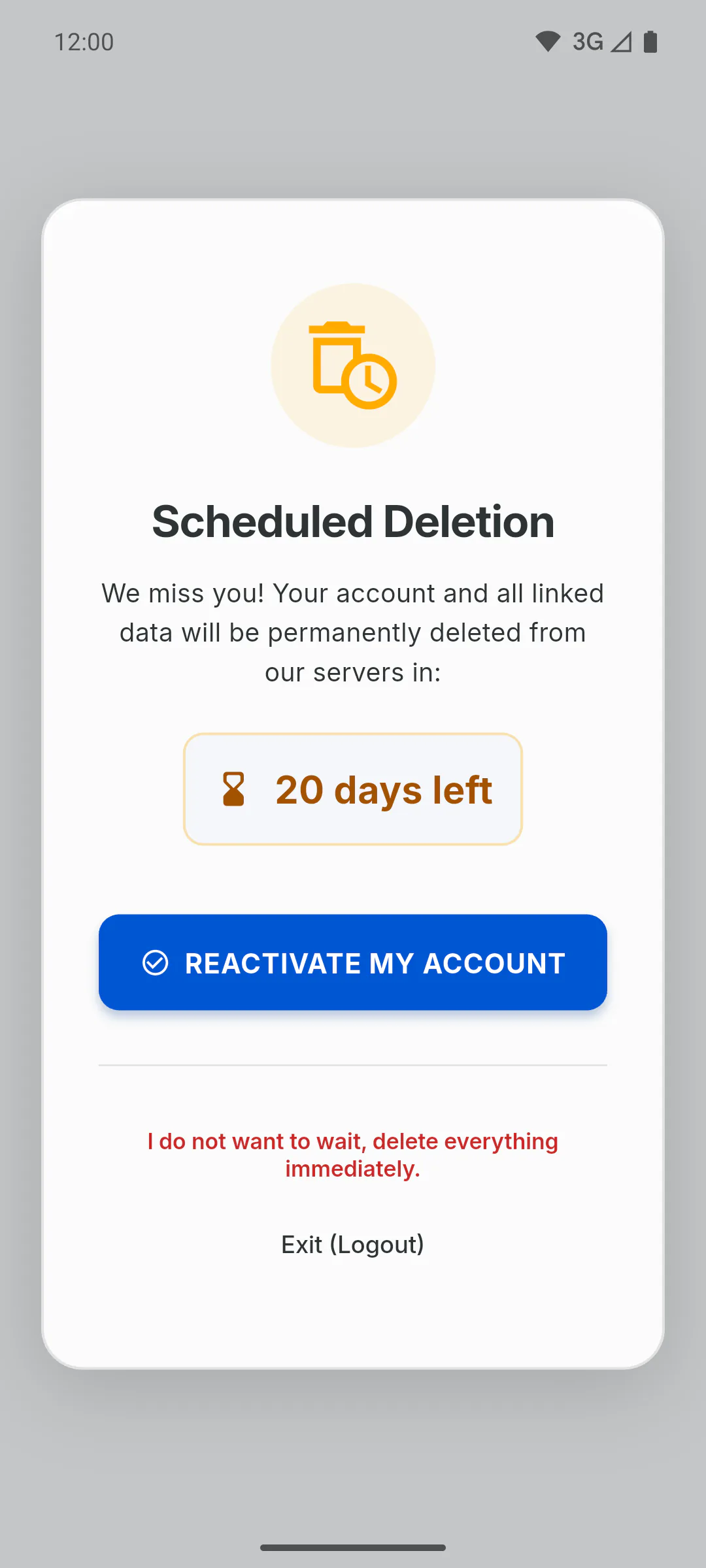
The app signs you out and shows Account suspended. You have 30 days to reactivate. If you sign in again within that time, the Scheduled Deletion screen appears, with the days left and the option to reactivate: How to reactivate an account scheduled for deletion. After that, the account and its data are permanently deleted.
Step 6: Client Portal clients
If you use the app as a client on a project, deletion is done on a different screen and happens immediately, without the 30 days: How to delete my client account.
How to delete your account (30-day period)
When you delete your account, it's suspended for 30 days and then permanently erased with all its data. See what gets deleted, what to do first and how to schedule it.
For managers and team members6 steps
Didn't find what you were looking for?
Chat with support on WhatsApp or raise a ticket in the app.